Add your channel picture
Your channel picture shows on the profile chip in the top-right corner and on every element that has a Channel picture or Profile picture. Add it once here and they all use it. Without a picture, elements show colored initials made from your channel name (for “Nova Byte”, that’s NB).
You’ll find the picture at the top of the Your channel panel. To open the panel, click your profile chip in the top-right corner of the app (see Set up your channel).
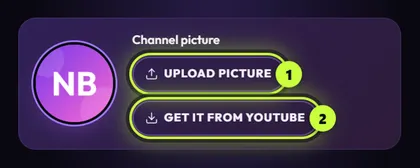
There are two ways to add it: upload your own picture (1), or get the one you already use on your platform (2).
-
Press Upload picture (1) and choose a picture on your computer.
Or drag a picture file from a folder onto the round picture. The circle says Drop a picture while you hold it there.
-
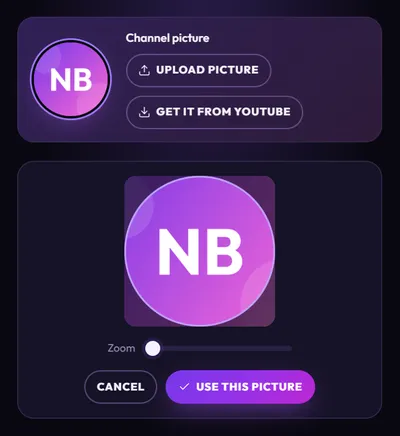
Position your picture in the circle that appears below:
- Move it: drag the picture, or click it and use the arrow keys.
- Zoom in: drag the Zoom slider, or scroll with your mouse wheel over the picture.
-
Press Use this picture. The round picture at the top updates.
-
Press Save (or Let’s go the first time).
You can use PNG, JPG, WebP, GIF (only the first frame is used) and SVG pictures, up to 20 MB.
-
Under Where do you stream?, check your main platform is selected, and type your handle in the box below it.
The Get it from … button only shows when your main platform is Twitch, YouTube, TikTok, X or Kick, and it stays grey until you type your handle.
-
Press Get it from YouTube (2). The button names your main platform, like Get it from Twitch. The app shows Looking up YouTube… for a moment.
-
Your picture appears in the round frame below. Move or zoom it if you like (drag it, use the Zoom slider, or the mouse wheel).
-
Press Use this picture.
-
Press Save (or Let’s go the first time).
On Instagram or Facebook? Those platforms don’t let the app read your picture, so the button isn’t shown. Upload your picture instead.
Keep a fetched picture up to date
Section titled “Keep a fetched picture up to date”If you got your picture with Get it from …, the app can keep it fresh. Turn on Auto-fetch once a day in Followers & subscribers, and each day, the first time you open the app, it checks your platform for a new picture:
- If your picture hasn’t changed, your crop stays as it is.
- If you changed your picture on the platform, the app swaps in the new one, centered in the circle.
- A picture you uploaded yourself is never replaced.
See Show your real follower counts for how Auto-fetch works.
Use a different picture on one element
Section titled “Use a different picture on one element”Your channel picture goes on every element. To put a different picture on just one element:
-
On the Elements tab, click the element to open it.
-
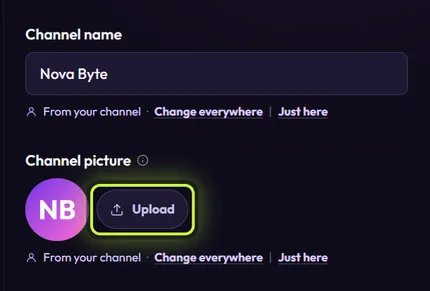
Under its Channel picture (or Profile picture), press Just here or Upload, and choose a picture.
-
In Position your picture, move and zoom it, then press Use this picture.
That picture stays on this element only. Press Use my channel under it to go back to your channel picture. See How your channel fills in elements.
If something goes wrong
Section titled “If something goes wrong”The message shows in red under the buttons.
| Message | What to do |
|---|---|
| We couldn’t find a picture for that name. Check the spelling, or upload a picture instead. | Check your handle is spelled right (just the name, no link). Or upload a picture. |
| You seem to be offline. Upload a picture instead. | Check your internet connection and try again, or upload a picture. |
| Too many picture lookups today. Upload a picture instead. | The place the picture comes from has a daily limit. TikTok and X pictures come through a free lookup service that allows a limited number of lookups a day. Try again tomorrow, or upload a picture. |
| That picture is bigger than 20 MB. Pick a smaller one. | Pick a smaller file, or save it smaller first. |
| That file isn’t a picture. Pick a PNG, JPG, WebP, GIF or SVG. | Pick a picture file in one of those formats. |
| That picture couldn’t be opened. Try a PNG or JPG. | The file may be damaged or in an unusual format. Save it as PNG or JPG and try again. |
| That picture couldn’t be opened. Try uploading one instead. | The picture from your platform didn’t work. Upload a picture instead. |
| We couldn’t get that picture. Upload one instead. | Something else went wrong. Try again later, or upload a picture. |