Find the right element
The Elements tab holds every element you can use: the free ones that come with the app, plus any you buy in the Store. This page shows you how to narrow the grid down, what each card tells you, and how to preview an element before you open it.
The Elements tab at a glance
Section titled “The Elements tab at a glance”The app opens on the Elements tab, under the heading Make it yours. Once you’ve set up your channel, the line under it says every element already shows your name.
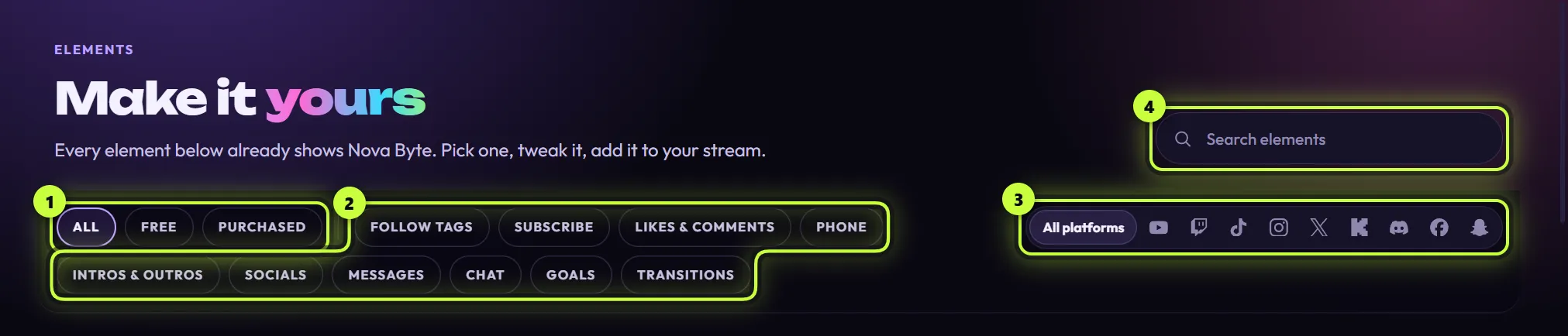
| Filter | What it does | |
|---|---|---|
| 1 | All Free Purchased | Shows everything, only the free elements that come with the app, or only elements from packs you bought. One of the three is always on. |
| 2 | Category chips | Shows one kind of element, like Follow tags or Subscribe. Click the same chip again to turn it off. |
| 3 | Platform filter | Click a platform’s icon to see the elements made for it. Click the icon again, or All platforms, to clear it. |
| 4 | Search elements | Finds elements by name, description, category or platform as you type. |
The filters work together. For example, Free + Follow tags + the Twitch icon shows only the free Twitch follow tags.
Under the filters, a line tells you how many cards match, like 14 elements of 25. With only the free elements installed, the full count is 25 elements: there are 21 free elements, and four of them come as two cards (a light one and a dark one). The pictures on this page were taken with a pack added, so they say 29.
Find an element step by step
Section titled “Find an element step by step”-
Click the Elements tab at the top of the app.
-
Pick Free to see the elements that come with the app, or All to include the ones you bought.
-
Optional: click a category chip, like Subscribe or Intros & outros, to see one kind of element.
-
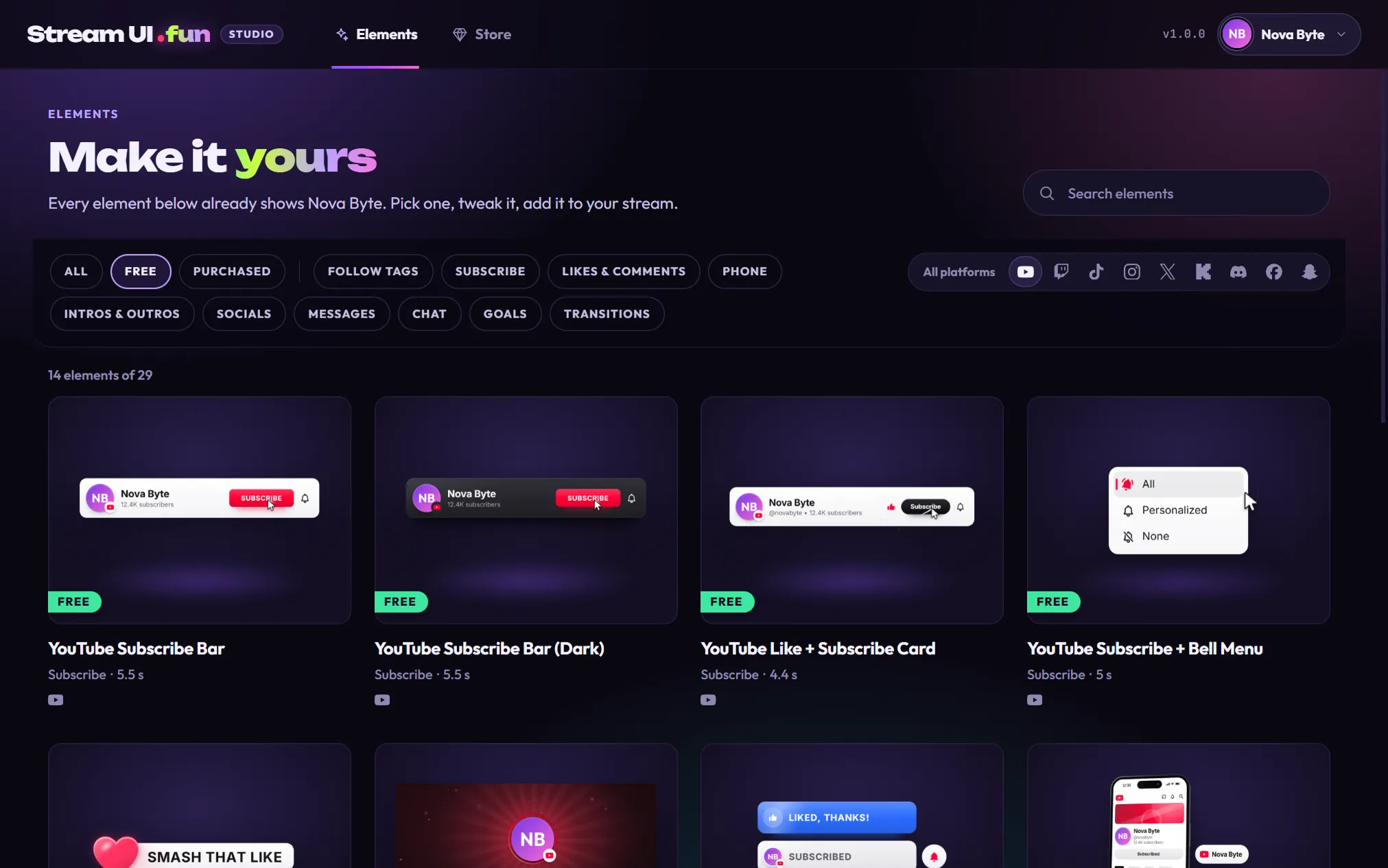
Optional: click your platform’s icon in the platform filter (for example the YouTube icon). The picture shows Free + YouTube, with no category picked.
-
Rest your pointer on a card to watch it play, then click the one you like to open it in the editor.
Categories
Section titled “Categories”The free elements fill seven categories: Follow tags, Subscribe, Likes & comments, Phone, Intros & outros, Socials and Messages. Packs from the Store can add more, such as Chat, Goals or Transitions. A chip only shows up when you have at least one element in that category.
Category names describe the look, not what starts the element: a follow tag doesn’t wait for a real follow. You play elements on cue, for example when a scene goes live, on a repeat timer, or with a hotkey. See How elements play.
Platforms
Section titled “Platforms”The platform filter shows an icon for every platform your elements are made for: YouTube, Twitch, TikTok, Instagram, X, Kick, Discord, Facebook and Snapchat. Hover an icon to see its name.
Elements made for any platform, such as Like Heart Tag or Text Message Pop-up, show up under every platform you pick.
Search
Section titled “Search”Click Search elements (or press Ctrl + FCmd + F while you’re on the Elements tab) and type a word, like bell, phone or discord. The grid updates as you type. Search works on top of the other filters, so if you get no results, try All and All platforms first.
What a card tells you
Section titled “What a card tells you”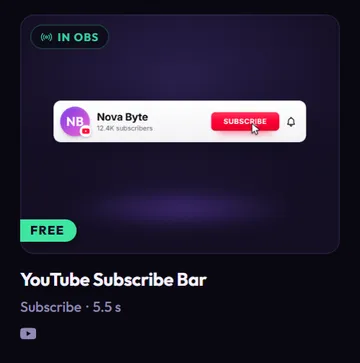
- The picture shows the element with your channel name and picture. Right after you set up your channel, the app redraws every card. While it works, you see Adding your channel to 12 cards… (or however many are left) and some cards still show the sample “Your Channel”.
- The flag at the bottom left of the picture:
- Free: comes free with the app.
- Owned: from a pack you bought.
- New: you just unlocked it. New cards move to the front of the grid.
- The badge at the top left, once you’ve added the element to OBS:
- A green In OBS badge: it’s in OBS and up to date.
- An amber Refresh in OBS badge: your latest changes are saved, but OBS still shows the old version. See Change an element that’s already in OBS.
- The name, then the type line: the category and how long the element plays, like Subscribe · 5.5 s. Elements that stay up until you take them off screen say Stays on screen (the Socials Bar does). Pack elements can also say Transition, Live widget or Ready-made file (like Sticker · Ready-made file). Those work a little differently: see Use elements from packs.
- The platform icons show who the element is made for (up to four, so the Socials Bar shows four). Elements that aren’t tied to one platform, such as Like Heart Tag, show Any platform.
Preview an element
Section titled “Preview an element”Rest your pointer on a card for a moment. The picture turns into the live element, playing with your settings, without sound. Move the pointer away and it stops. Only one card plays at a time.
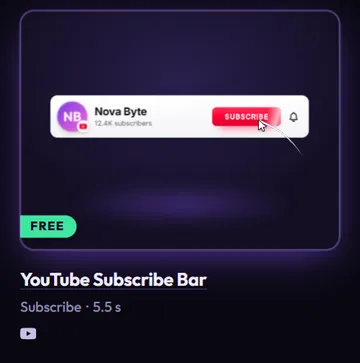
If you’ve turned off animations on your computer (animation effectsReduce motionanimations in your system settings), cards stay still. Click the card to open it: the editor plays the element for you.
When the grid is empty
Section titled “When the grid is empty”Nothing matches means your search and filters together found no cards. Click Clear filters to reset the chips, the platform filter and the search box in one go.
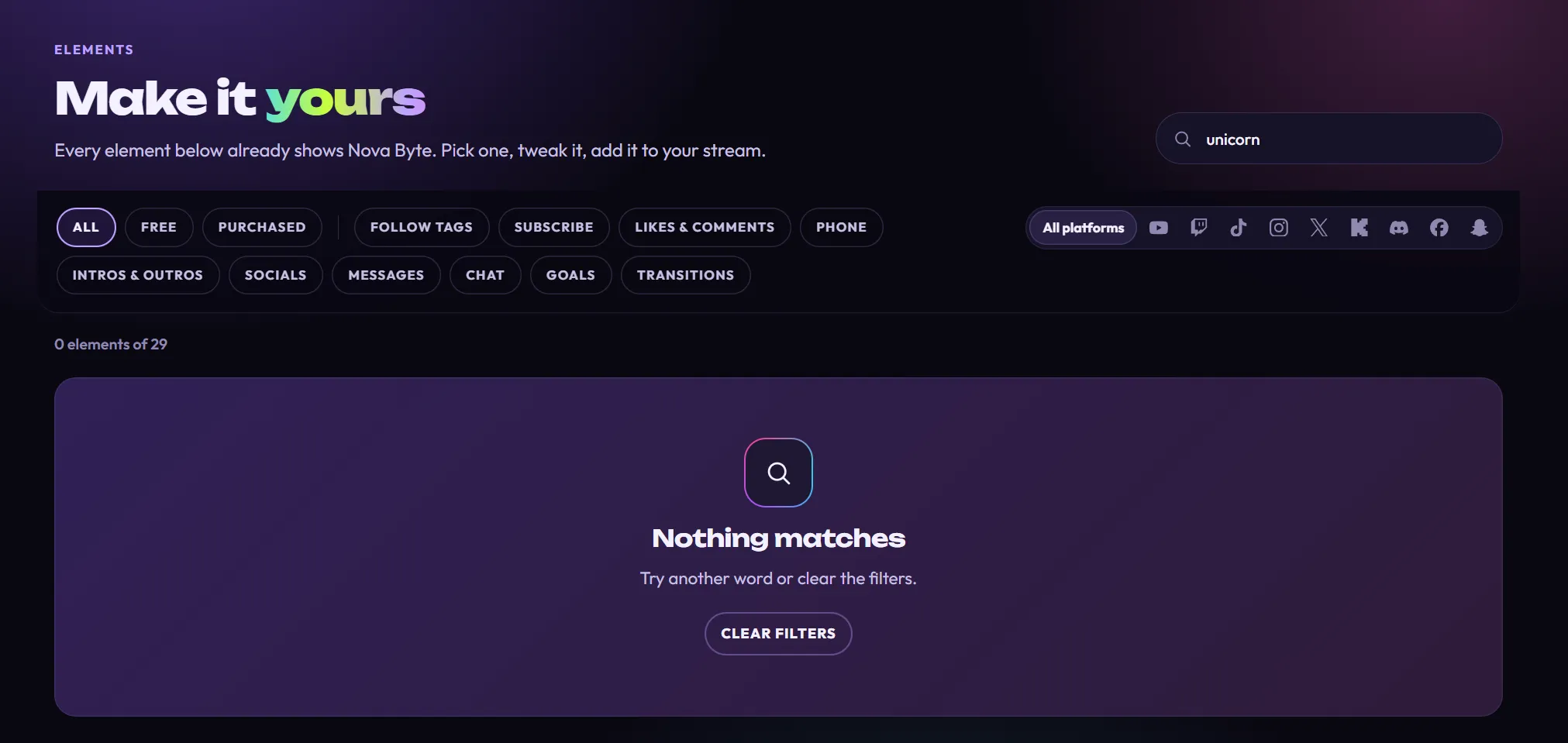
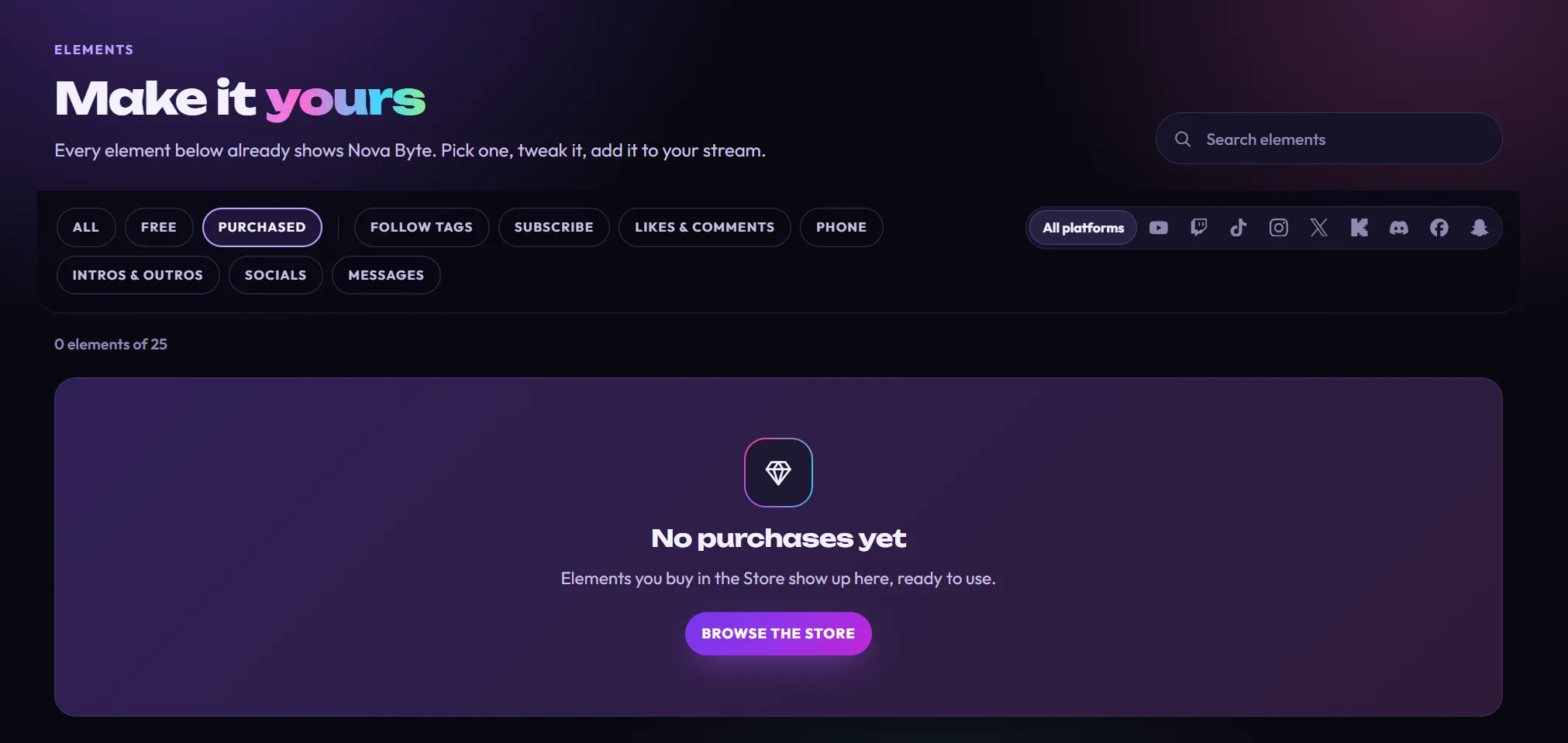
No purchases yet shows when Purchased is on and you haven’t added any packs. Click Browse the store to see what’s in the Store.