Pick your streaming app
Every element you make in Stream UI Fun Studio can go on your stream, whichever streaming app you use. It always starts with the same button in the editor: Add to my stream. Pick your app below for its step-by-step guide.
Supported streaming apps
Section titled “Supported streaming apps”How each way works
Section titled “How each way works”There are four ways an element gets into your streaming app. The big difference is what happens when you change the element later.
| Way | Apps | When you change the element |
|---|---|---|
| Automatic | OBS Studio | OBS shows the change by itself a moment later. |
| Browser source | Streamlabs Desktop, XSplit Broadcaster, PRISM Live Studio, Meld Studio, and OBS Studio by hand | The app updates the file for you. Refresh the source in your streaming app to see the change. |
| Video | TikTok LIVE Studio | Download the video again and swap it in. |
| Custom widget | StreamElements | Copy the code again and paste it into the widget. |
A browser source is a source that shows a web page. Here, that page is the element, saved on your computer by the app. New to scenes and sources? The glossary explains them.
Tell the app what you stream with
Section titled “Tell the app what you stream with”Add to my stream opens a different window depending on the app you use. You choose it in Your channel:
-
Click your channel name (the profile chip) at the top right of the app. Before you’ve set up your channel, it says Set up your channel. The Your channel panel opens.

-
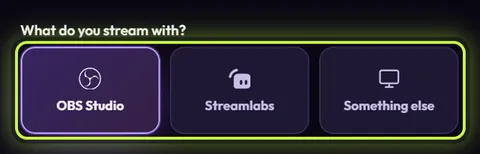
Scroll down to What do you stream with? and pick OBS Studio, Streamlabs or Something else.
-
Click Save.
The app also asks this the first time you start it (see Set up your channel). If you never pick, it uses OBS Studio. You can switch any time, for example to try a different app’s guide.
What Add to my stream opens
Section titled “What Add to my stream opens”
| You picked | The button opens |
|---|---|
| OBS Studio (the default) | The Add to OBS window, which puts the element into OBS for you. See Add to OBS Studio. |
| Streamlabs | The Add it to your stream guides, open on Streamlabs Desktop. |
| Something else | The Add it to your stream guides, open on the first app in the list (Streamlabs Desktop). Click your app on the left. |
The Add it to your stream guides
Section titled “The Add it to your stream guides”The guides list every app on the left (1). Click yours to see what to copy and the steps to follow on the right.
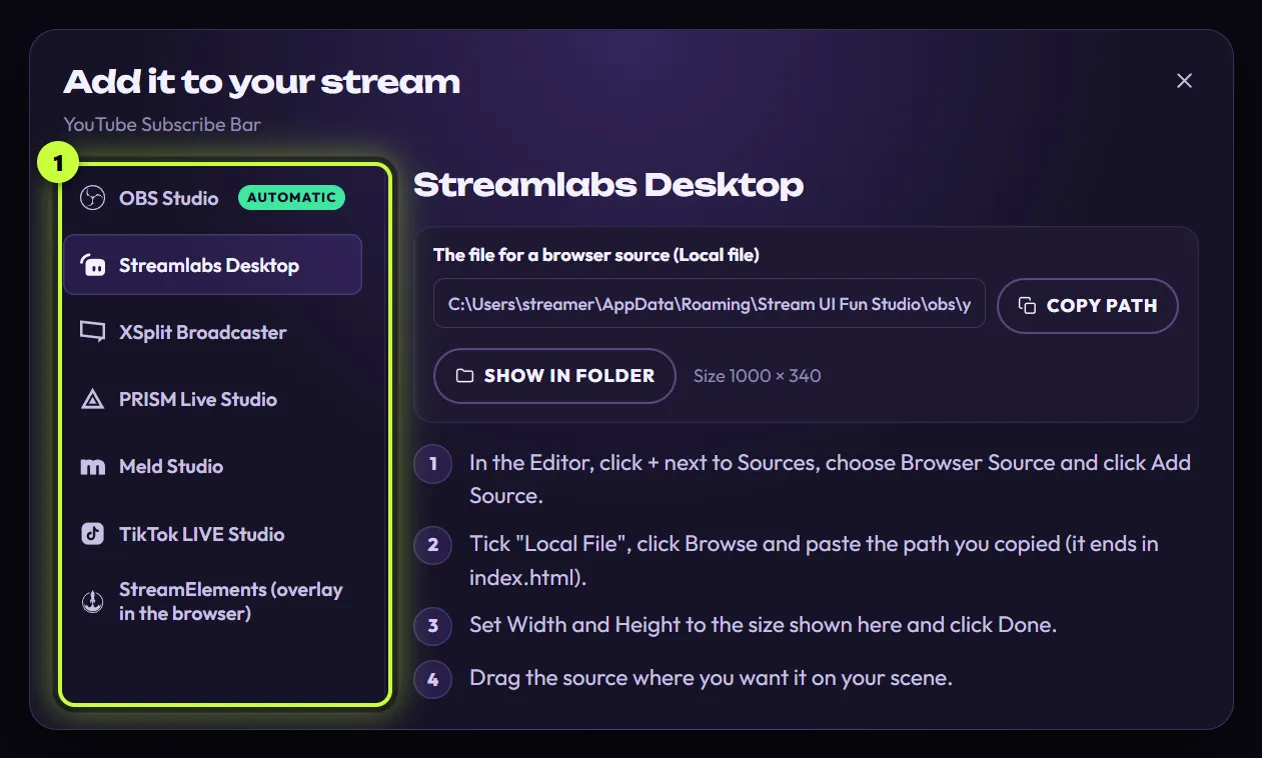
- The OBS Studio tab has an Automatic label. Its Set it up automatically button opens the Add to OBS window.
- You use OBS but want another app’s guide, for example TikTok LIVE Studio? Set What do you stream with? to Something else, open the guide, then set it back to OBS Studio. Otherwise Add to my stream keeps opening the guides instead of the Add to OBS window.