A quick tour of the app
Stream UI Fun Studio has two tabs, Elements and Store, and an editor that opens when you click an element. This tour shows what each part does, so you always know where to click.
The Elements tab
Section titled “The Elements tab”The app opens on the Elements tab. It’s your library: every element you can use, free or bought, already showing your channel.
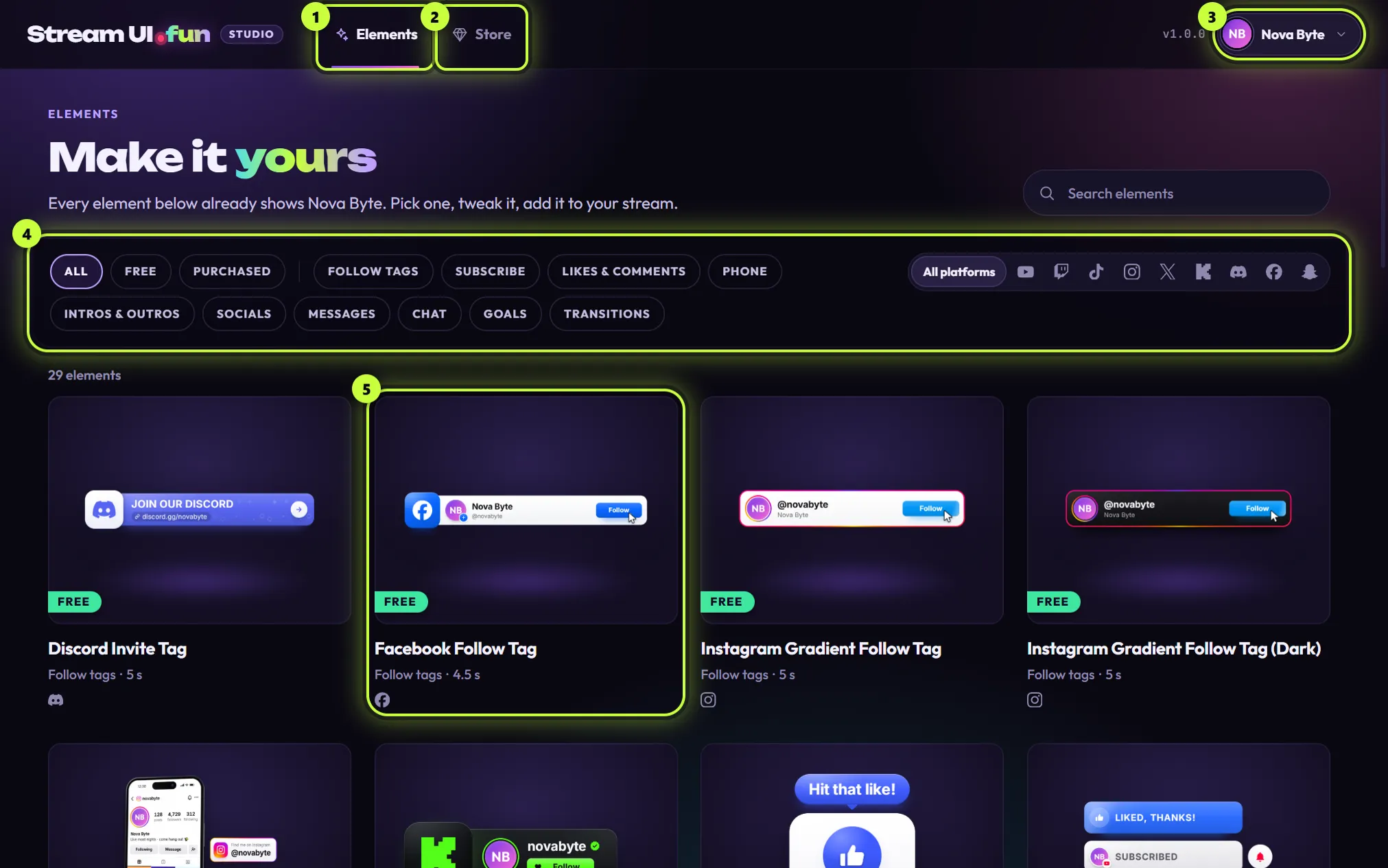
- Elements tab: your elements. Click it to come back here from anywhere.
- Store tab: shop for packs and manage the ones you bought. A small pink dot appears on it while the app is waiting for a purchase.
- Profile chip: your picture and name, top right. Click it to open the Your channel panel (see Your channel below).
- Filters: show only the elements you’re looking for.
- Element cards: click a card to open it in the editor.
Next to the profile chip, a small number like v1.0.0 shows which version of the app you have. It’s handy when you ask us for help.
Search and filters
Section titled “Search and filters”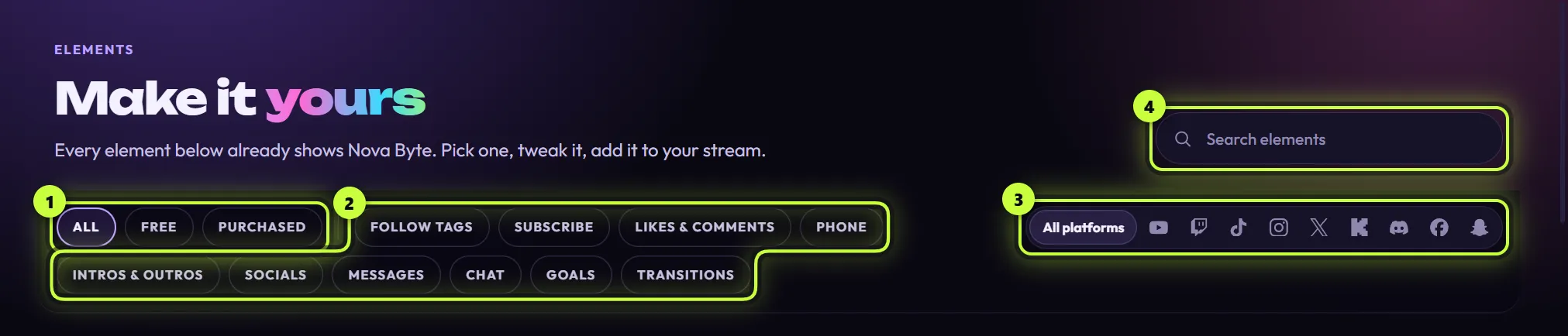
At the top, the page greets you by name: “Every element below already shows … Pick one, tweak it, add it to your stream.” On the right, the Search elements box (4) finds elements by name, description, category or platform. Press Ctrl + FCmd + F to jump to it.
| Filter | What it shows |
|---|---|
| (1) All · Free · Purchased | Everything, only the free elements, or only elements from packs you bought. |
| (2) Categories, like Follow tags or Subscribe | One kind of element. Click the same chip again to turn it off. You only see categories you have elements in. The free elements come in Follow tags, Subscribe, Likes & comments, Phone, Intros & outros, Socials and Messages. Packs can add more, like Chat, Goals and Transitions. |
| (3) All platforms and the platform icons | Elements made for one platform, like YouTube or Twitch. Click the icon again, or All platforms, to see everything. Elements that work on any platform always show. |
The line under the filters counts what you see, for example “14 elements of 29” when a filter is on. The app remembers your filters for next time.
If nothing matches, click Clear filters. If you pick Purchased before buying anything, you see No purchases yet and a Browse the store button.
Element cards
Section titled “Element cards”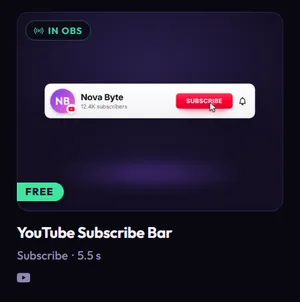
- The picture shows the element with your channel in it. Right after you change your channel, you may see “Adding your channel to … cards…” for a few seconds while the pictures update.
- The flag says Free (a free element), Owned (from a pack you bought) or New (just unlocked).
- The badge at the top left says In OBS once you’ve added the element to OBS. Refresh in OBS means your changes are saved but OBS hasn’t picked them up yet. See Change an element that’s already in OBS.
- Under the name: the category and how long the element plays, like “Subscribe · 5.5 s”. “Stays on screen” means it stays up instead of playing and leaving.
- The icons show the platforms it’s made for. “Any platform” means it fits everywhere.
Hover over a card to watch it play with your settings. If you’ve turned off animations on your computer (Animation effects in Windows settingsReduce motion in macOS settingsAnimations in your desktop's accessibility settings), the card keeps its still picture.
The editor
Section titled “The editor”Click any card to open it in the editor. This is where you make the element yours and send it to your stream.
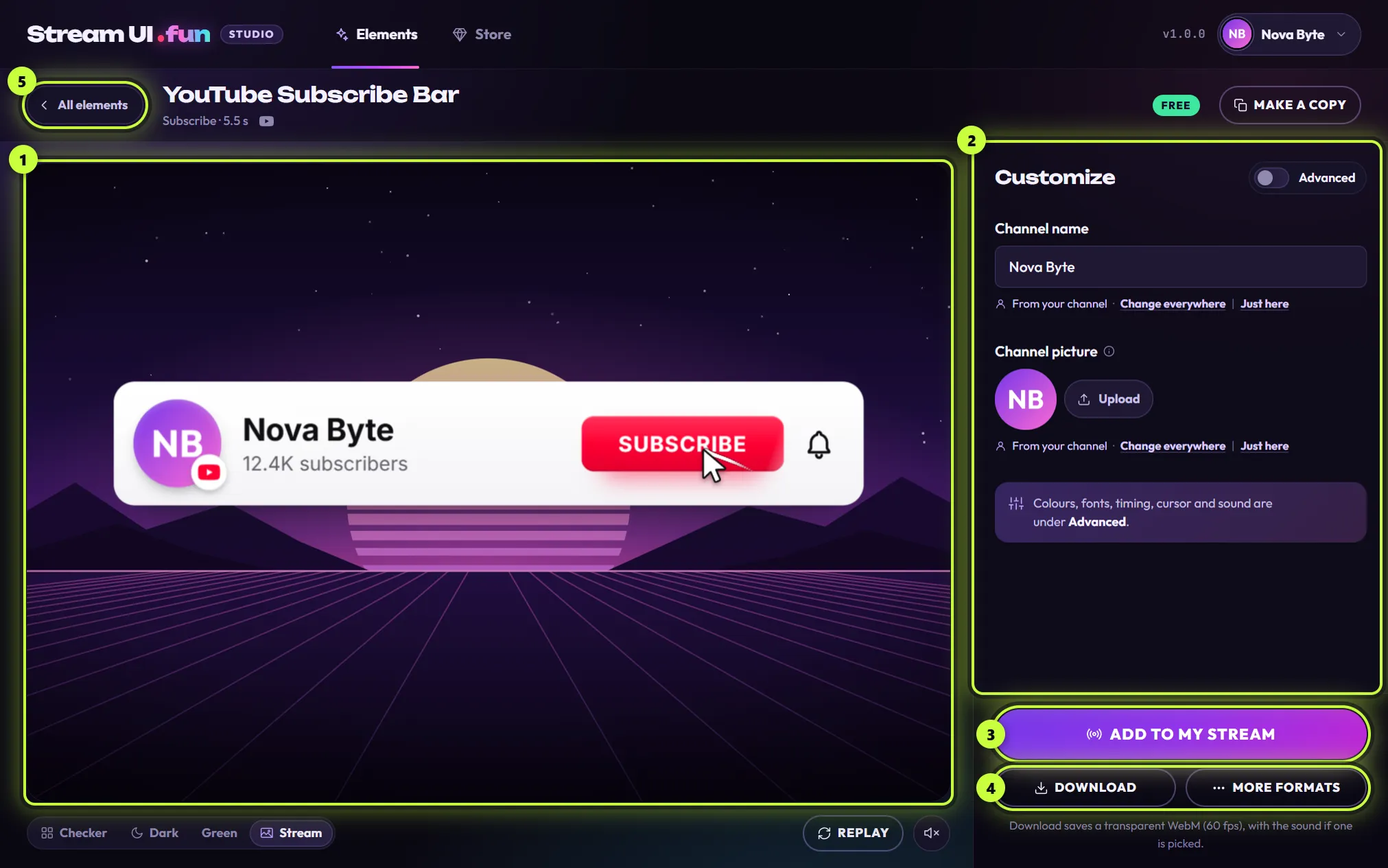
- Preview: your element plays on a loop with your current settings. Under it you can:
- switch the background: Checker (the checks are see-through areas), Dark, Green or Stream (a sample stream scene). The background is only for the preview. It isn’t part of your element.
- click Replay to play it again from the start.
- turn the preview sound on or off with the speaker button. The sound is off each time you open an element.
- Customize: the settings. The basic view shows just the things to fill in, like your channel name and picture. Turn on Advanced at the top for colors, fonts, timing, the cursor and sound. The app remembers that choice for every element. There’s no Save button: every change saves by itself. Once you’ve changed something, a Reset all changes link appears at the bottom of the settings.
- Add to my stream: puts the element in OBS Studio, or opens the step-by-step guide for your streaming app.
- Download saves the element as a video with a see-through background (WebM, 60 fps), with its sound if you picked one. More formats has other choices: MOV for video editors, MP4 for phone apps, GIF for Discord and a StreamElements custom widget.
- All elements: back to the Elements tab. You can also press Esc.
The top of the editor also shows the element’s name, its category and length, a Free or Owned label, and In OBS once it’s in OBS. On the right, Make a copy makes a second version with its own settings. Copies you made also get a Delete copy button.
Under each field you may see a small hint. From your channel · Change everywhere | Just here means the value comes from your channel. Change everywhere changes it on every element, and Just here changes it on this element only. Learn more in How your channel fills in elements.
The Store tab
Section titled “The Store tab”The Store tab has two parts at the top: Shop and My purchases.
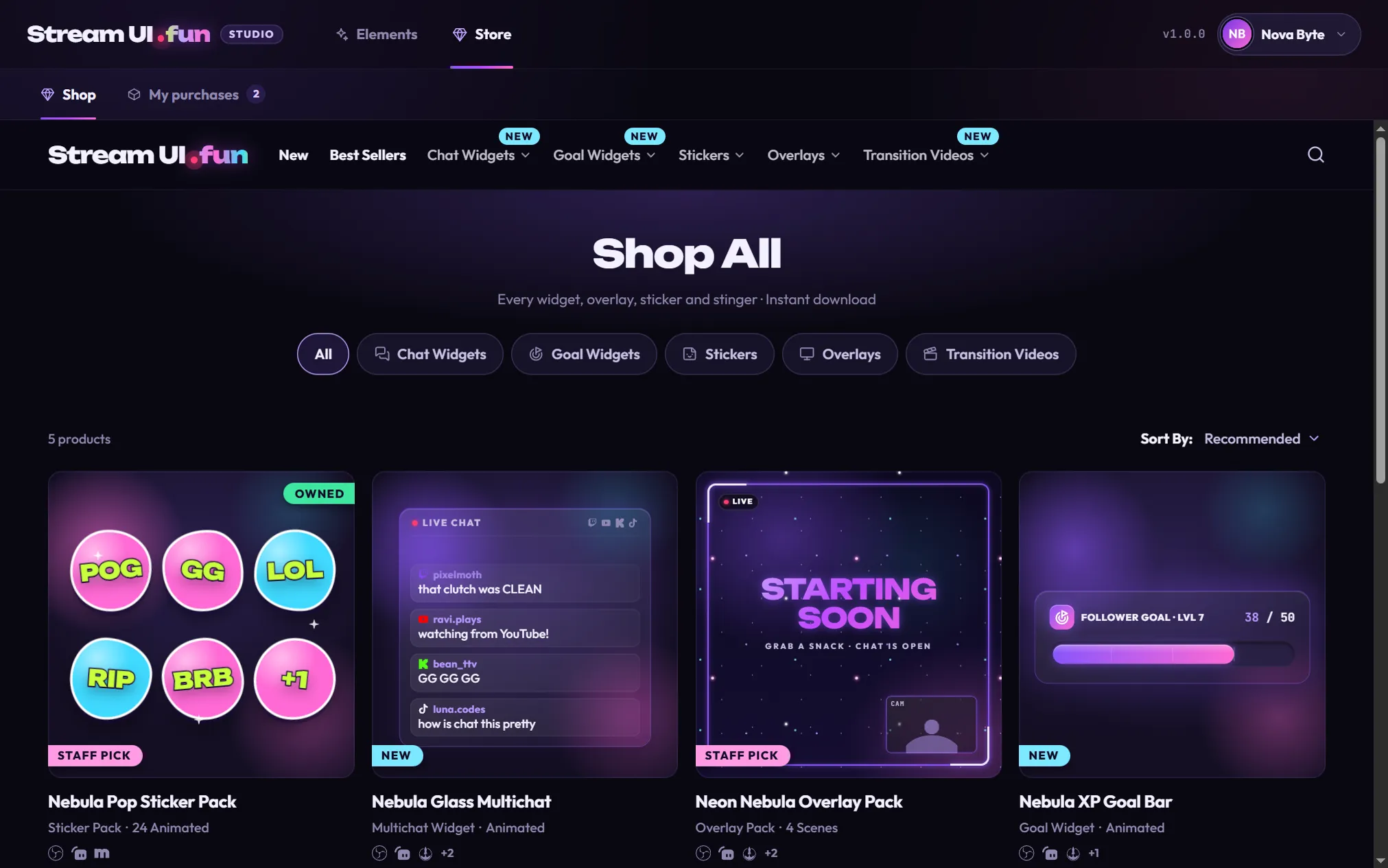
- Shop is the streamui.fun store. Packs you already own are marked OWNED. When you buy something, the checkout opens in your web browser. If you’re offline, the app shows a saved copy of the store with the note Offline — prices may be out of date.
- My purchases lists the packs you’ve unlocked on this computer. The number next to it is how many you have. Here you can open, update or remove a pack, click Restore purchases on a new PC, or drop in the .zip file of something you bought.
Read more in The Store at a glance and Import and unlock your purchase.
Your channel
Section titled “Your channel”Click the profile chip (your picture and name, top right) to open the Your channel panel. It holds everything elements fill in for you: your channel name and picture, the platforms you stream on and your handles, your follower and subscriber counts, and the app you stream with. Click Save and every element updates, including the ones already in OBS.
If you skipped the setup the first time, the profile chip says Set up your channel:

The full guide is Set up your channel.
The update button
Section titled “The update button”When a new version of the app is ready, a round download button appears at the top right, next to your channel, and pulses gently. Click it to update. The app installs the new version and restarts. If there’s no update, you don’t see the button at all.

See Update the app.
Keyboard shortcuts
Section titled “Keyboard shortcuts”| Keys | Where | What it does |
|---|---|---|
| Ctrl + FCmd + F | Elements tab | Jump to Search elements. |
| Esc | Editor | Go back to all elements (when you’re not typing in a box). |
| Esc | Any window or panel | Close it. |
| ← / → | The Elements and Store tabs | Switch between the tabs, when one of them has the keyboard focus. |
| Double-click | Any slider in the editor | Put the slider back to its starting value. |
| ↑ / ↓ | Where will you use it? in More formats | Pick the next or previous choice. |
| ↑ / ↓ | The app list in the Add it to your stream guides | Switch to the next or previous app. |
| Enter | The password box in Add to OBS | Connect to OBS. |
| Arrow keys | Where on screen in Add to OBS | Move between the nine spots. |
| Arrow keys | Position your picture | Move the picture inside the guide. |