Hotkeys and Stream Deck
In OBS, showing an element’s source plays it. Put that on a key or a Stream Deck button and you can play any element on cue, like thanking someone the moment they follow.
How it works
Section titled “How it works”An element plays when its source goes from hidden to shown in the scene that’s live. So one “play” is always: hide the source, then show it.
- Showing a source that’s already shown does nothing.
- Showing it in a scene that isn’t live doesn’t play it.
- When an element finishes, it folds away and the source is see-through. So a shown source doesn’t cover anything between plays. It just needs to be hidden again before the next play.
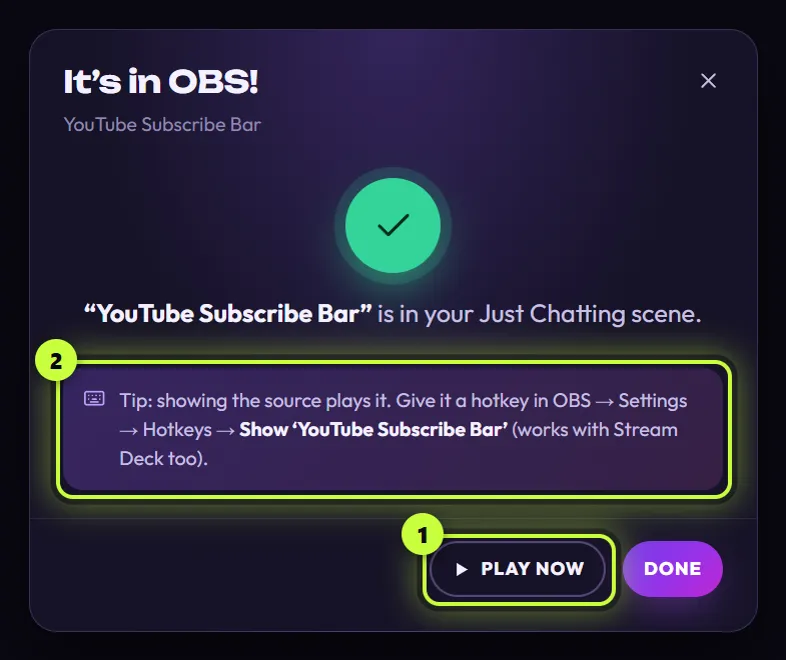
The app reminds you of this when you add an element. The tip (2) in its It’s in OBS! window also names the exact hotkey row to look for in OBS, here Show ‘YouTube Subscribe Bar’:
Set up OBS hotkeys
Section titled “Set up OBS hotkeys”These steps are for OBS Studio 30 and 31. Menu names can differ a little in other versions.
- In OBS, open File → SettingsOBS → Settings (Preferences in older versions) (or click Settings under Controls) and choose Hotkeys.
- Find the name of the scene the element is in. Under it are two rows for the element’s source, for example Show ‘YouTube Subscribe Bar’ and Hide ‘YouTube Subscribe Bar’. The source’s name is the one in the app’s It’s in OBS! message, usually the element’s name. If your OBS has a filter box at the top of the list, type the name there.
- Click the box next to Show ‘…’ and press the keys you want to use. Pick a combination your games don’t use, such as Ctrl + Alt + 1Ctrl + Option + 1.
- Click the box next to Hide ‘…’ and press a different combination, such as Ctrl + Alt + 2Ctrl + Option + 2.
- Click Apply, then OK.
- Test it: switch OBS to that scene, press your Hide keys, then your Show keys. The element plays.
Use it live
Section titled “Use it live”- Before you go live, hide the source: click the eye icon next to it in OBS’s Sources list.
- When you want the element, press your Show keys. It plays.
- Once it has played, press your Hide keys so it’s ready for next time.
Keys don’t work while you’re in a game?
Section titled “Keys don’t work while you’re in a game?”OBS hotkeys normally work while another window is in front. If they don’t:
- In OBS, open Settings → Advanced and find the Hotkeys setting for focus. Never disable hotkeys is the safest choice (the wording may differ in your version).
- If your game runs as administrator, Windows may block keys from reaching OBS. Running OBS as administrator too can help. macOS has to allow OBS to read keys while another app is in front. Open System Settings → Privacy & Security, then turn OBS on under Accessibility and Input Monitoring. Restart OBS afterwards. OBS hotkeys only work while another window is in front on an X11 session, not on Wayland. On Ubuntu, pick Ubuntu on Xorg with the gear icon on the login screen, or play elements with a Stream Deck or the eye icon instead.
Set up a Stream Deck button
Section titled “Set up a Stream Deck button”Elgato’s Stream Deck app talks to OBS through its free OBS Studio plugin. Plugin and action names change from version to version, so look for the closest match.
- In the Stream Deck app, install Elgato’s OBS Studio plugin from the built-in store if you don’t have it yet, and connect it to OBS as the plugin explains. If it asks for OBS’s WebSocket password, open Tools → WebSocket Server Settings → Show Connect Info in OBS and copy the password shown there (more help).
- From the OBS Studio actions, drag the action that shows and hides a source onto a key. It’s called something like Source or Source visibility.
- In the action’s settings, pick the scene and then the element’s source, for example YouTube Subscribe Bar.
- Test it: press the key to hide the source, then press it again to show it. The element plays when it’s shown.
This kind of action usually switches the source on and off with each press. So the routine is the same as with keys: start with the source hidden, press once to show and play it, and press again afterwards to hide it.
Sources you added by hand
Section titled “Sources you added by hand”An element you added to OBS yourself doesn’t play when its source is shown: Play when the scene becomes visible is only set by Add to OBS. Make OBS reload the source instead, because a reloaded element plays:
- In OBS, double-click the element’s source to open its properties.
- Tick Shutdown source when not visible.
- Click OK.
Now each time you show the source, with the eye icon, a hotkey or a Stream Deck button, the element loads fresh and plays. The same works for a StreamElements overlay’s browser source, but it reloads the whole overlay, so every widget on it starts again.
Don’t tick this box on sources the app added for you: they don’t need it. The one exception is an element that stays on screen, like the Socials Bar (Elements that stay on screen).
Other streaming apps and videos
Section titled “Other streaming apps and videos”- Streamlabs Desktop and PRISM Live Studio: their browser source settings often have the same Shutdown source when not visible box, so a key that shows the source can play the element. See Streamlabs or PRISM.
- XSplit and Meld Studio: an element plays when its browser source loads. Use the app’s reload or refresh option for browser sources, and check its own help for hotkeys.
- Downloaded videos in OBS: in the media source’s properties, tick Restart playback when source becomes active. Showing the source then starts the video from the beginning. See Use your videos anywhere.