Download a video
One click on Download saves an element as a video file with a see-through background. You can use it in TikTok LIVE Studio, drop it into a video edit, or keep it as a clip for later.
What you get
Section titled “What you get”The one-click download always makes the same kind of file:
| Setting | What you get |
|---|---|
| Format | WebM video |
| Background | See-through (transparent), so only the element shows |
| Smoothness | 60 frames per second |
| Size | The element’s own size, nothing around it (the YouTube Subscribe Bar is 1000 × 340 px) |
| Length | The animation plays once. Elements that stay on screen, like the Socials Bar, make a 10-second video. |
| Sound | Included if the element has a sound picked (see Sound in your video) |
The video shows the element exactly as you set it up: your channel name, picture, colors and text. The preview background you picked in the editor (Checker, Dark, Green or Stream) is only there to help you see. It is never part of the video.
Need a different format, a full 1920 × 1080 frame or a vertical video? Use More formats instead. See Choose a format.
Download your element
Section titled “Download your element”-
In the Elements tab, click the element you want. It opens in the editor.
Customize it first if you like. The video uses your settings as they are when you download. See Customize an element.
Want sound in the video? Free elements start silent, so pick a sound first: turn on Advanced and look in the Effects group. See Sound in your video.
-
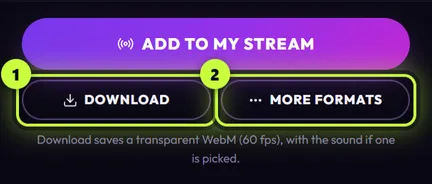
At the bottom right of the editor, under Add to my stream, click Download (1).
-
A save window opens. The app suggests your
Videos\Stream UI Fun StudioMovies/Stream UI Fun StudioVideos/Stream UI Fun Studiofolder and a name likeYouTube Subscribe Bar - Nova Byte.webm. Click Save.If you close this window or click Cancel, nothing is saved and nothing else happens.
-
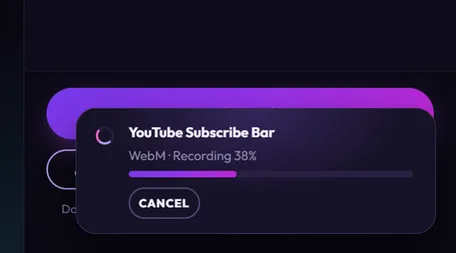
A progress card appears in the bottom-right corner of the app. It shows Recording with a percentage, then Saving the file… at the end. While it’s saving, Download is greyed out for this element, so you can’t start the same video twice.
-
When the card says Saved with your file name, the video is ready. Click Show in folder to open the folder with the file selected.
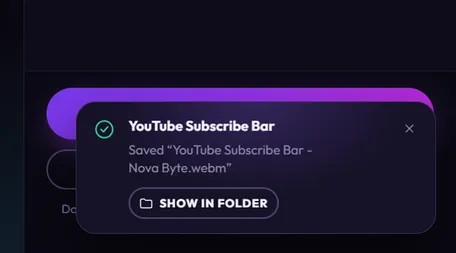
The finished card closes on its own after about 20 seconds. Your video stays in the folder.
Sound in your video
Section titled “Sound in your video”Your video carries the element’s sound when a sound is picked for it. The note under the buttons says so: “Download saves a transparent WebM (60 fps), with the sound if one is picked.”
- When a sound counts as picked: the element’s sound setting (for example Click sound or Pop sound) is set to a sound, not None, and its Sound volume is above 0. You find both under Advanced, in the Effects group. See Advanced settings.
- Free elements start with no sound. Until you pick one, their downloads are silent.
- The sound plays where the element plays it, for example at the moment the cursor clicks the Subscribe button. The rest of the video is quiet.
- The speaker button under the preview doesn’t matter. It only turns the preview’s sound on or off. The download follows the element’s sound setting.
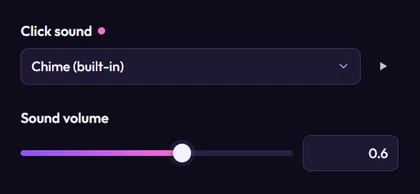
While a video with sound is being made, the progress card says WebM with sound instead of WebM. If a sound was picked but the element didn’t play it while recording, the card says “No sound played, so it’s silent” after the file name, and the video has no sound.
Where your videos are saved
Section titled “Where your videos are saved”- Folder: the app suggests
Stream UI Fun Studioinside your VideosMovies folder (usuallyC:\Users\<your name>\Videos\Stream UI Fun Studio/Users/<your name>/Movies/Stream UI Fun Studio/home/<your name>/Videos/Stream UI Fun Studio). It creates the folder the first time you download. - File name: the element’s name, then your channel name, for example
YouTube Subscribe Bar - Nova Byte.webm. - Made a copy of the element? Its number is part of its name, so it’s in the file name too:
YouTube Subscribe Bar (2) - Nova Byte.webm. - Downloading the same element again? The app never suggests a name that’s already taken in that folder, so the next file becomes
YouTube Subscribe Bar - Nova Byte (2).webm, then(3), and so on. - Your choice wins: you can pick another folder or name in the save window. If you delete the
.webmending by mistake, the app adds it back.
Lost a video? Open Videos\Stream UI Fun StudioMovies/Stream UI Fun StudioVideos/Stream UI Fun Studio in File ExplorerFinderyour file manager, or click Show in folder on the progress card while it’s still showing.
While a video is saving
Section titled “While a video is saving”- One at a time: the app makes one video at a time. Start more and they wait their turn. Their cards say “Waiting for the export before it…” until they start.
- Cancel: click Cancel on the card to stop a video or take it out of the line. The unfinished file is deleted.
- Keep working: you can go back to All elements, open other elements or visit the Store. The video keeps saving and the card stays in the corner.
- Tidy the corner: click × on a finished or failed card to close it. A cancelled video’s card says Cancelled and then disappears. The corner shows up to four cards at a time.
- Don’t close the app: closing Stream UI Fun Studio stops any video that’s still saving and deletes the unfinished file.
- Updates wait for you: if you start an app update while a video is saving, the app asks first: “A video is still exporting. The app restarts to update, which stops the export.” Click Later to let it finish.
If a download doesn’t work
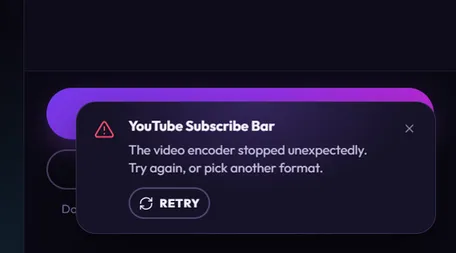
Section titled “If a download doesn’t work”When something goes wrong, the progress card shows a red warning sign and says what happened in plain words. Click Retry to try again with the same settings. The save window opens again so you can pick the file name.
| The card says | What to do |
|---|---|
| “The video encoder stopped unexpectedly. Try again, or pick another format.” | Click Retry. If it keeps happening, try another format in More formats. |
| “The video couldn’t be saved. Check the folder still exists and there’s free disk space, then try again.” | Free up some disk space, or save somewhere else. Close the file if it’s open in another program (a video player, for example). |
| “Recording this element took too long. Try again — closing other heavy apps can help.” | Close games or other heavy programs, then retry. |
| “This element couldn’t be recorded. Try again, or reset its settings.” | Retry. If it fails again, click Reset all changes in the editor, then download again. See Make copies and reset changes. |
If you click Show in folder and a message pops up saying “That file isn’t there anymore.”, the video was moved or deleted. Look in Videos\Stream UI Fun StudioMovies/Stream UI Fun StudioVideos/Stream UI Fun Studio, or download it again.
More messages are explained in Error messages explained.