Make copies and reset changes
Want the same element twice with different settings, like one for each game or each channel? Make a copy. Went too far with your changes? Reset one setting, or the whole element, in a couple of clicks.
Make a copy
Section titled “Make a copy”A copy is a second version of an element with its own settings. It starts with everything the original has right now (all your changes and pictures), and from then on the two are separate.
-
Open the element you want to copy from the Elements tab.
-
Click Make a copy at the top right of the editor.
-
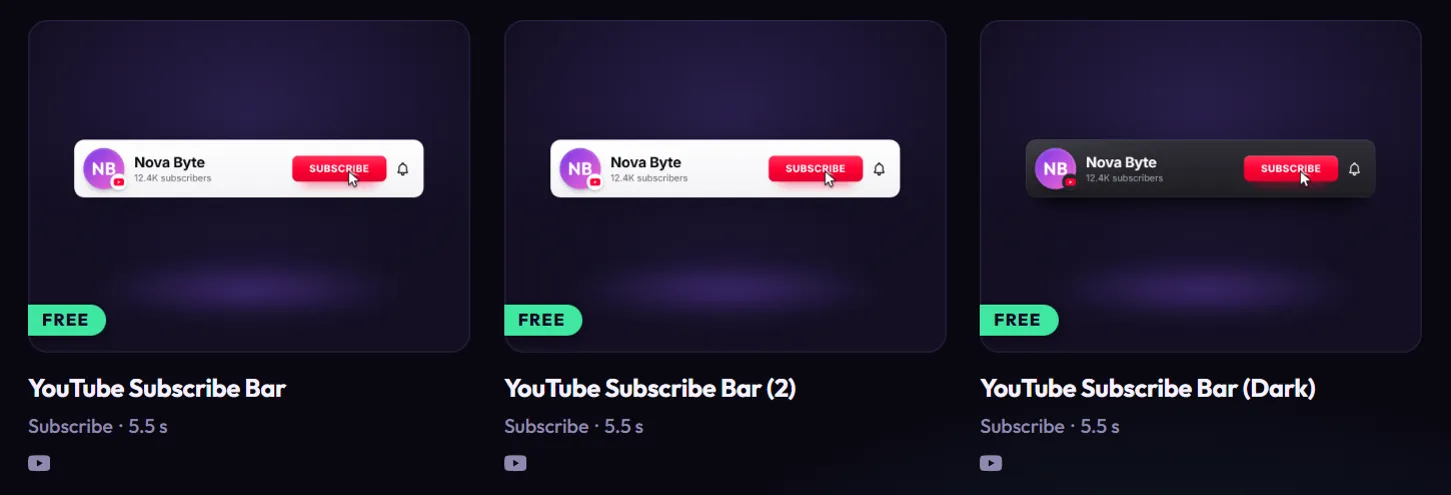
The app says Made a copy: YouTube Subscribe Bar (2) and opens the copy straight away.
-
Change the copy however you like. The original stays as it was.
The app numbers your copies for you: (2), (3) and so on. In the Elements tab, a copy sits right after the card it came from. You can’t rename a copy in the app, but its number tells it apart: in OBS, its source gets the same name, like YouTube Subscribe Bar (2).
Ideas for copies:
- The same follow tag with a different handle, for a second channel.
- A follow tag with a friend’s handle, to shout them out when they raid you. Play it with a hotkey or a Stream Deck button (see Hotkeys and Stream Deck).
- One version per game, each with its own colors or button words.
- A loud version with a sound and a quiet one without.
Delete a copy
Section titled “Delete a copy”You can delete copies you made. The original cards that come with the app (or with a pack) can’t be deleted.
-
Open the copy in the editor.
-
Click Delete copy at the top right. This button only appears on copies.
-
In Delete this copy?, click Delete.
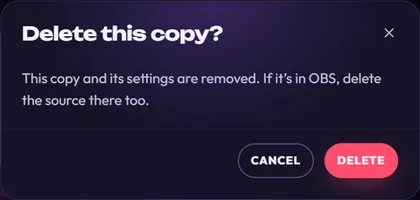
The copy and its settings are gone, and you’re back in the Elements tab.
Reset one setting
Section titled “Reset one setting”Changed settings have a pink dot next to their name.
- Most settings: hover the setting and click the small reset arrow that appears next to its name. That one setting goes back to how it started.
- Sliders: you can also double-click the slider.
- Your name, handle or picture: if you changed it for this element only, click Use my channel under it to go back to your channel’s value. See How your channel fills in elements.
Reset all changes
Section titled “Reset all changes”-
Open the element in the editor.
-
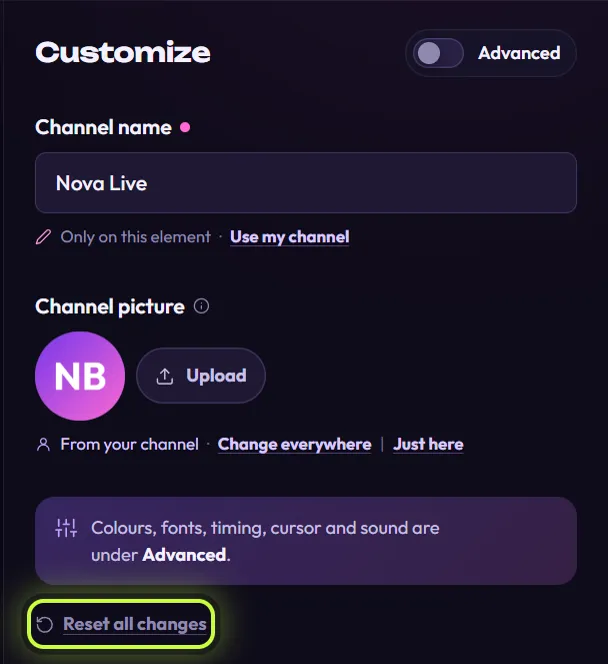
Scroll to the end of the settings in the Customize panel, just above Add to my stream, and click Reset all changes. With Advanced on, it’s below the last group. This link only shows once you’ve changed something on this element.
-
In Reset this element?, click Reset.
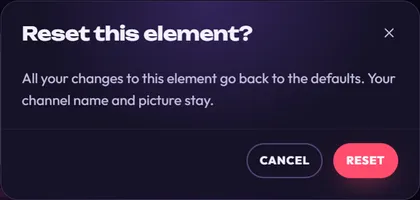
What happens:
- Goes back to the start: every change you made on this element, including pictures you uploaded just for it. That includes names, handles and pictures you set Just here (like Nova Live in the picture above): they go back to your channel’s.
- Stays: your channel name, handle, picture and counts. They come from your channel, so the element shows them again right away.
- Also stays: how the element plays in OBS (Play it again every and Play when the scene becomes visible). See Set up play events.
Reset only affects this one element. Other elements and your copies keep their settings. If the element is in OBS, the reset version goes to OBS just like any other change.