Use your videos anywhere
Each recipe below starts in the app and ends in the place you’ll use your video. Find yours, follow the steps, and you’re done.
| You want to… | Save it as | Recipe |
|---|---|---|
| Play a video in OBS | WebM (Download) | OBS media source |
| Add it to TikTok LIVE Studio | WebM (Download) | TikTok LIVE Studio |
| Edit it into a video on your PC | MOV (Video editors) | Video editors |
| Edit it on your phone | MP4 on a green screen (Phone apps) | Phone apps |
| Post it in Discord | GIF (Discord) | Discord |
| Make a TikTok, Short or Reel | MP4 or MOV at 9:16 | Vertical videos |
Everything except Download is in More formats. If you’re not sure which format to pick, see Choose a format.
The app suggests saving every file in Videos\Stream UI Fun StudioMovies/Stream UI Fun StudioVideos/Stream UI Fun Studio, and you can pick another folder in the save window. Right after saving, Show in folder on the progress card opens the folder with your file selected.
OBS Studio: a video as a media source
Section titled “OBS Studio: a video as a media source”For your live stream, Add to my stream is usually better: it adds the element to OBS for you, keeps it up to date, and can replay it on a timer. See Add to OBS Studio. A video file is handy when you just want a simple clip that loops, or plays when you show it.
-
In the editor, click Download and save the WebM.
-
In OBS, click + under Sources and choose Media Source. Give it a name and click OK.
-
Click Browse and pick your video. It’s in
Videos\Stream UI Fun StudioMovies/Stream UI Fun StudioVideos/Stream UI Fun Studiounless you saved it somewhere else. -
Choose how it plays, then click OK:
- Tick Loop to play it again and again, with no pause between plays.
- Or leave Loop off and tick Restart playback when source becomes active, so it plays each time you show the source (for example with a hotkey).
-
Drag the source where you want it on your scene.
If your video has sound, OBS also lists the media source in its audio mixer, where you can turn it up or down.
TikTok LIVE Studio
Section titled “TikTok LIVE Studio”TikTok LIVE Studio takes videos, so you add the element as a WebM with a see-through background.
-
In the editor, click Download and save the WebM.
-
In TikTok LIVE Studio, click Add source, choose Media (or Video) and pick the saved file.
-
Turn on looping if you want it to repeat, then move it into place.
Like any video, it won’t play by itself when someone follows or sends a gift: loop it, or show it when you want it.
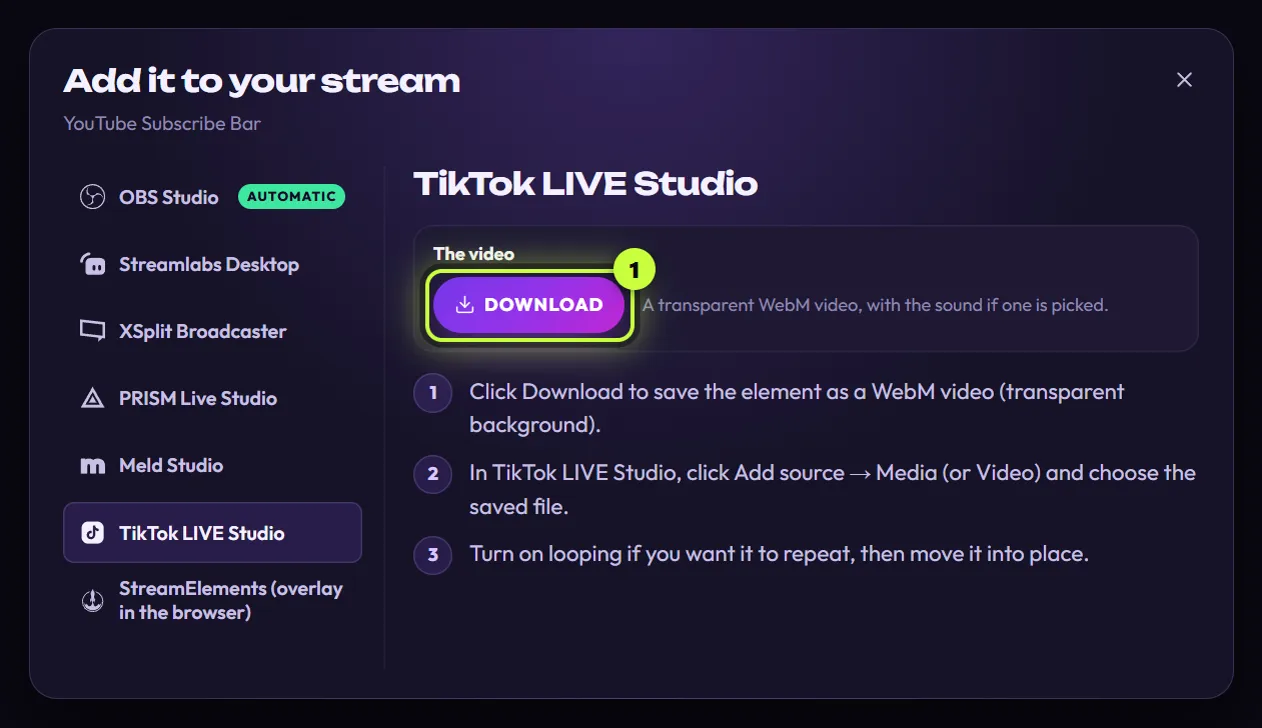
More help, including how to open that guide: TikTok LIVE Studio.
Video editors on your PC (MOV)
Section titled “Video editors on your PC (MOV)”MOV keeps the see-through background and works in desktop video editors like Premiere Pro, DaVinci Resolve and Final Cut. Using CapCut (phone or desktop)? Follow the Phone apps recipe instead.
-
In the editor, click More formats and choose Video editors.
-
Pick a Video size:
- 16:9 1920×1080 if your project is 1920 × 1080. Then choose a Position (for example bottom left) and the clip already sits in the right spot.
- Element if you’d rather move and resize it yourself in your editor.
-
Click Save video, then Save.
-
In your video editor, import the
.movfile and put it on a track above your footage. Your footage shows through around the element.
- Big files are normal. MOV is made for editing quality.
- Black instead of see-through? Some editors need to be told to use the clip’s transparency (also called alpha). In DaVinci Resolve, for example, this is in the clip’s attributes. If your editor can’t show it, use a green-screen MP4 and its chroma key tool instead (see Phone apps; desktop editors work the same way).
- Final Cut Pro runs on a Mac. Copy the file to your Mac first.
- Sound: if the element has a sound picked, it comes in on the clip’s audio track.
Phone apps (MP4 green screen)
Section titled “Phone apps (MP4 green screen)”Most phone editors can’t read see-through videos. So you save an MP4 on a green background and let the app remove the green with its chroma key tool (it turns one color see-through).
-
In the editor, click More formats and choose Phone apps.
-
Pick a Video size: Element for just the element, or 9:16 1080×1920 for a tall video (see Vertical videos). With 9:16, also click a spot in the Position grid.
-
Leave Background on Green screen. If your element has green in it, pick Colour… and a color the element doesn’t use.
-
Click Save video, then Save.
-
Get the file onto your phone, for example with your cloud storage, a USB cable, or by sending it to yourself.
-
In your phone app, add the MP4 as an overlay on top of your clip. Select it and find the chroma key tool. In CapCut it’s usually under Remove BG or Cutout, then Chroma key.
-
Pick the green (or your color) with the color picker, then raise the strength until the background is gone.
Discord (GIF)
Section titled “Discord (GIF)”-
In the editor, click More formats and choose Discord.
-
Keep Video size on Element. It makes the smallest file.
-
Click Save video, then Save.
-
Click Show in folder on the progress card, then drag the
.giffrom File ExplorerFinderyour file manager into a Discord chat or channel.
The GIF loops forever and has no sound. Soft glows and shadows get hard edges, which is normal for GIFs.
Discord limits how big an upload can be, and the limit depends on your account. If Discord says the file is too big, save it again at Element size. If you use Advanced, keep Sharpness and Repeat at 1×.
Vertical videos for TikTok, Shorts and Reels
Section titled “Vertical videos for TikTok, Shorts and Reels”TikTok, YouTube Shorts and Instagram Reels use tall 9:16 videos, 1080 × 1920 pixels.
-
In the editor, click More formats and choose:
- Phone apps (MP4 on a green screen) if you edit on your phone or in the TikTok, Instagram or CapCut editor.
- Video editors (MOV, see-through) if you edit in Premiere Pro, DaVinci Resolve or another desktop editor.
-
Under Video size, pick 9:16 1080×1920.
-
Under Position, click where the element should go. The top or middle is safest: TikTok, Shorts and Reels put captions and buttons over the bottom and right side of the video.
-
Click Save video, then Save. Then follow the phone apps or video editors recipe to add it to your clip.
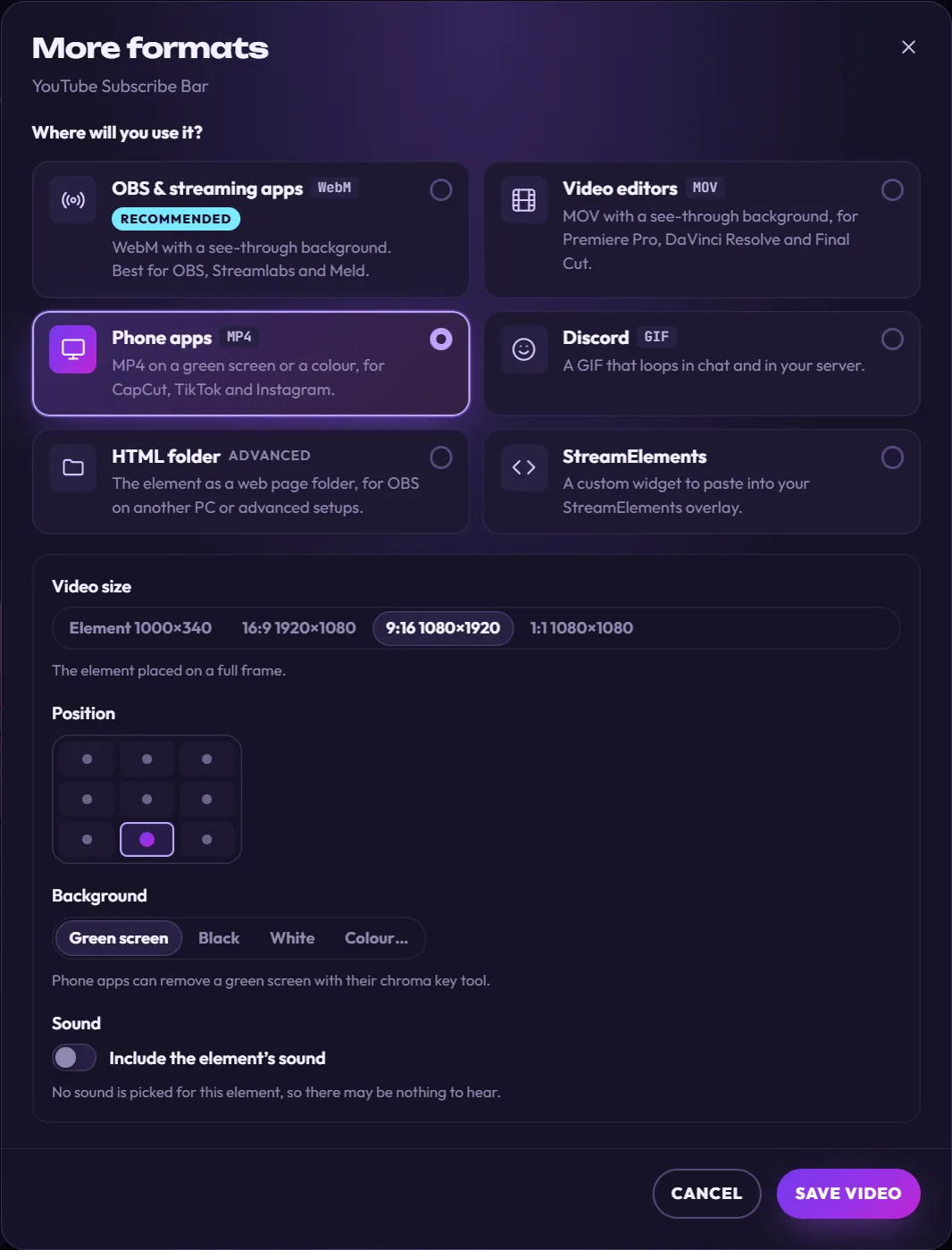
- The element keeps its size. A 1000-wide follow tag stays 1000 wide in the 1080-wide frame. Wide elements, like 1920-wide intros, shrink to fit.
- Want it bigger? Turn on Advanced in the editor. In More formats, set Sharpness to 2×: the element shows up to twice as big, but never bigger than the frame.
- Square posts: pick 1:1 1080×1080 instead.