Manage your purchases
My purchases lists every pack you’ve unlocked on this computer. From here you open a pack’s elements, grab updates, enter license keys and remove packs you don’t need. To get there, click Store in the top bar, then My purchases.
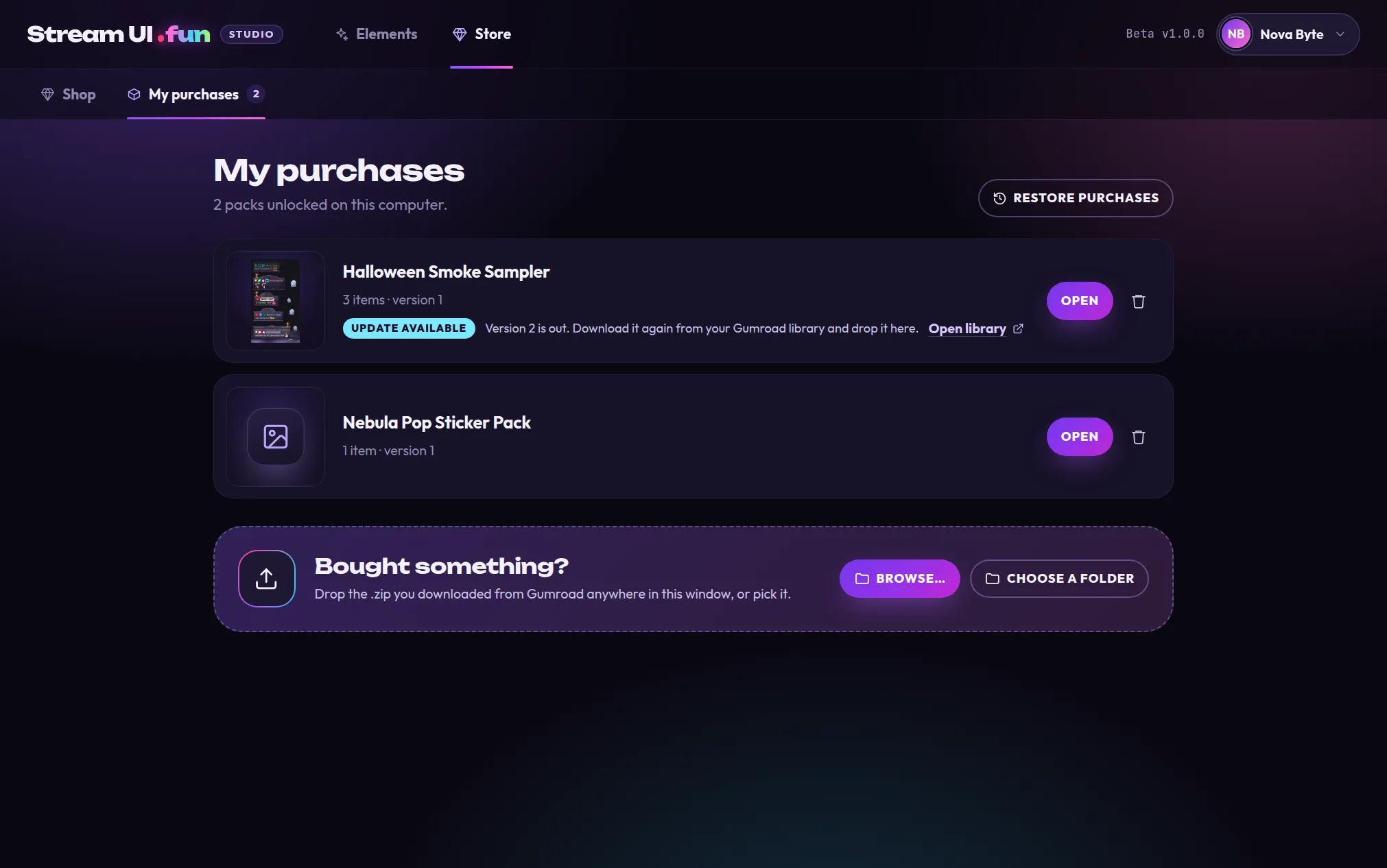
At the top, a short line sums things up, for example 2 packs unlocked on this computer. If some packs still wait for their key, it adds how many, like 1 pack waiting for a license key.
Each pack’s row
Section titled “Each pack’s row”| You see | What it means |
|---|---|
| Picture and name | The pack, with a picture of one of its elements (or a plain icon). |
| 3 items · version 1 | How many elements or files it holds, and which version you have. Packs unlocked with a license key also show licensed to and a hidden version of the email you bought with. |
| Open | Shows the pack’s elements in the Elements tab. |
| Update available | A newer version is out. See Update a pack. |
| Locked | The pack needs its license key. See Locked packs. |
| Trash can | Removes the pack from the app. See Remove a pack. |
Open a pack
Section titled “Open a pack”Click Open on a row. The Elements tab opens, showing only that pack’s elements. Click one to customize it, then add it to your stream. The × on the From … chip (1) shows all your elements again.
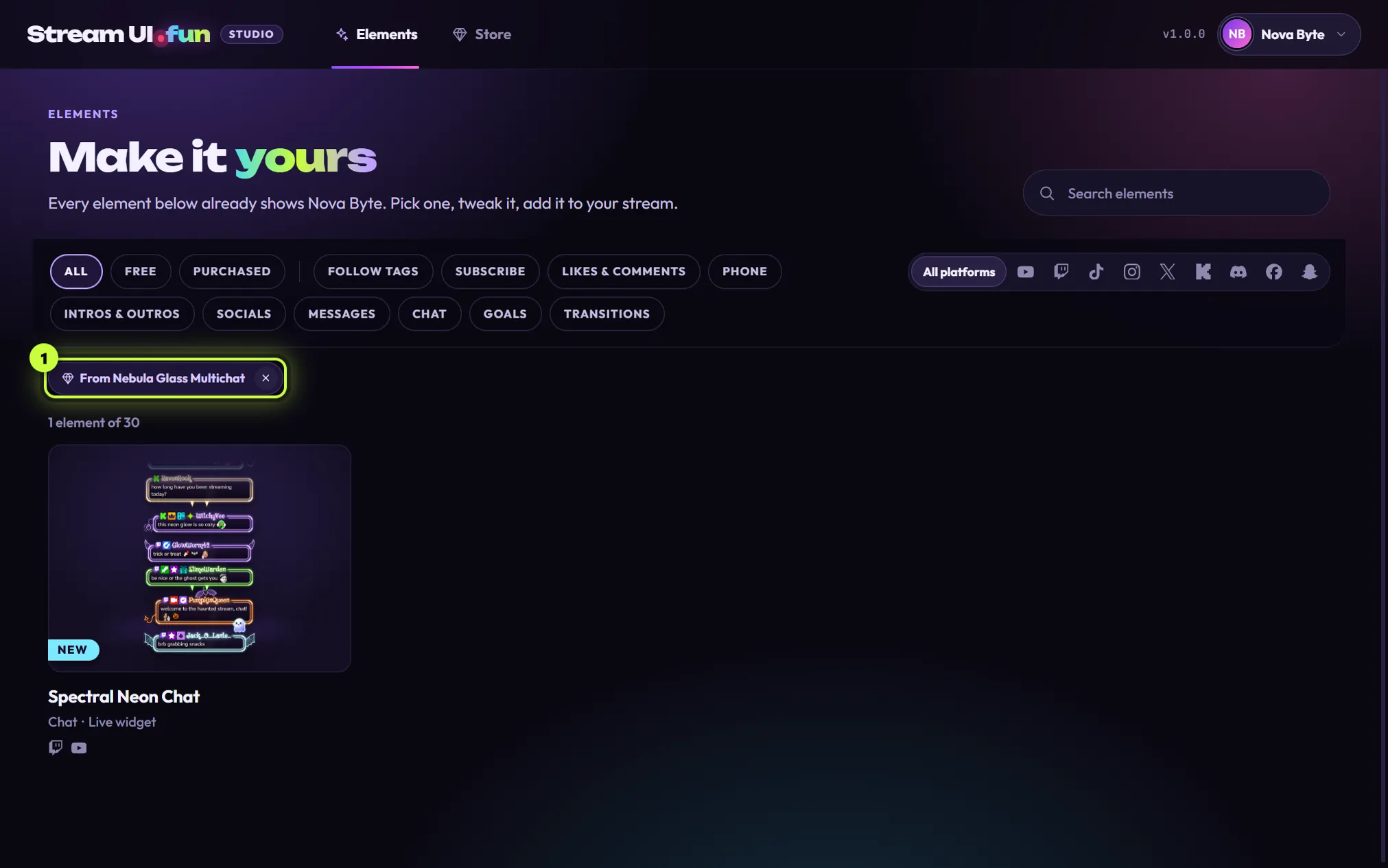
You can also find everything you bought with the Purchased filter in the Elements tab.
Update a pack
Section titled “Update a pack”When we improve a product, Gumroad emails you and the new files appear in your Gumroad library, free. The app spots this too: the pack’s row shows Update available and Version 2 is out. Download it again from your Gumroad library and drop it here.
-
Click Open library on the row. Your Gumroad library opens in your browser.
-
Open the product and download its .zip again.
-
Drag the new .zip onto the app window (or click Browse… at the bottom of My purchases).
-
The result shows the pack with updated to v2 (or whichever number is new). Done.
Elements from that pack that you already added to OBS refresh by themselves. If the app is offline, it compares with the last store list it saw, so a brand-new update may show up only once you’re back online.
Locked packs
Section titled “Locked packs”A pack is Locked when it needs a license key: either you haven’t entered it yet, or Gumroad later said the key no longer works. The reason is written next to the Locked tag.

- Enter key (1) opens the box to paste your license key.
- Check again (2) asks Gumroad right away. It appears when Gumroad turned the key down, or when the app couldn’t confirm your purchase for over 30 days.
All the reasons and what to do are on License keys.
Remove a pack
Section titled “Remove a pack”-
Click the trash can on the pack’s row.
-
The app asks you to confirm and tells you what will happen.
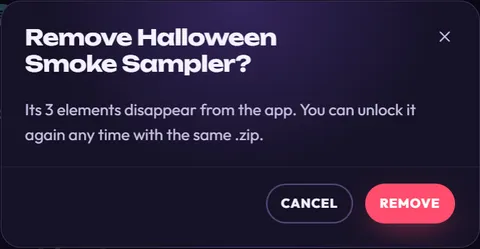
-
Click Remove. You see Removed and the pack’s name.
What removing does:
- The pack’s elements disappear from the app.
- If some of them are in OBS, the box says so, for example 3 OBS sources use this pack: they keep showing the last version but won’t update.
- It doesn’t cancel or refund your purchase. Your files stay in your Gumroad library, and you can unlock the pack again any time with the same .zip.
Add a purchase
Section titled “Add a purchase”The Bought something? box at the bottom is where you add a pack you bought: drop the .zip anywhere in the window, or click Browse… or Choose a folder.

Nothing here yet?
Section titled “Nothing here yet?”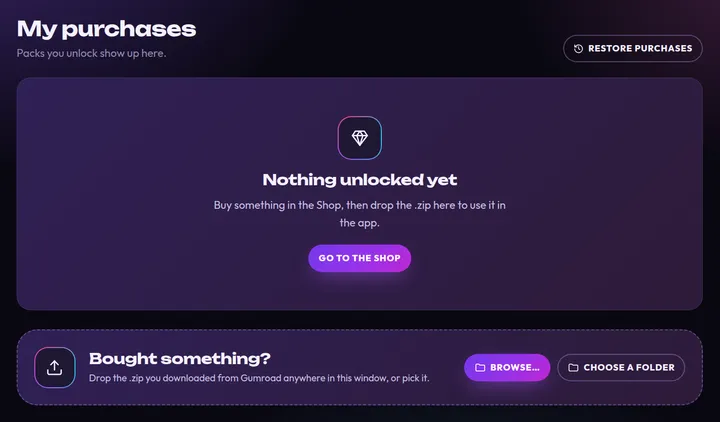
When you haven’t unlocked anything on this computer, you see Nothing unlocked yet. Click Go to the Shop to browse. Already bought something? Bring it in, or click Restore purchases to find your unlock files. See Restore purchases on a new PC.