Add to OBS Studio
If you stream with OBS Studio on this computer, the app can put an element right into your scene for you. No file paths, no sizes to type. It also keeps the element up to date in OBS whenever you change it.
Add an element to OBS
Section titled “Add an element to OBS”-
Open OBS Studio.
-
In Stream UI Fun Studio, click an element on the Elements tab and customize it the way you like.
-
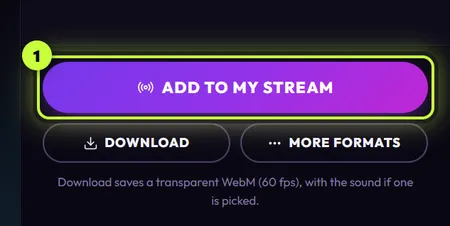
Click Add to my stream under the settings.
-
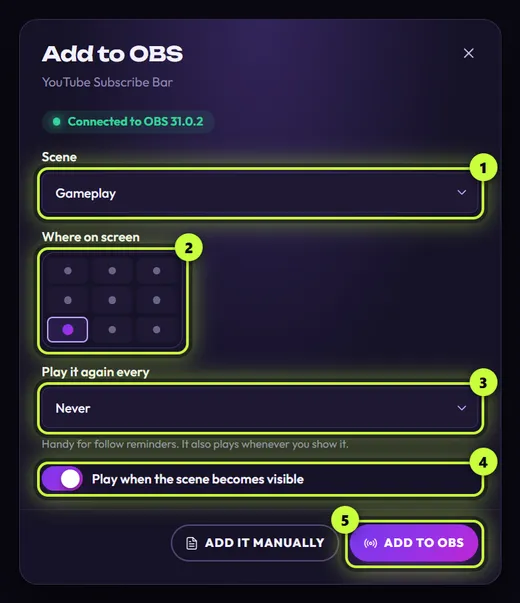
The Add to OBS window opens. When it says Connected to OBS followed by OBS’s version number, you’re ready.
The first time, it usually says Turn on OBS’s connection instead: follow the three steps it shows and click I’ve done it. If it then asks for OBS’s password, click Auto-detect password. Any other message? See Connect the app to OBS.
-
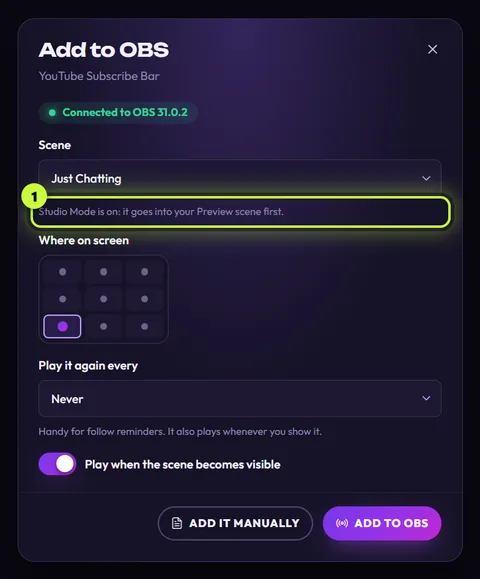
Under Scene (1), pick the OBS scene the element goes into. It starts on the scene that’s live in OBS right now.
-
Under Where on screen (2), click the spot where the element should sit. See Choose where it sits.
-
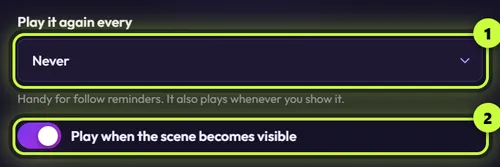
Choose when it plays again with Play it again every (3) and Play when the scene becomes visible (4). The defaults, Never and on, suit most elements. See Choose when it plays.
Adding a live widget from a pack, like chat or a goal bar? It has no play options and no Play now: it’s always on screen, showing your live data. Skip this step, and in step 9 just click Done.
-
Click Add to OBS (5). The window shows Adding it to OBS… for a moment.
-
When you see It’s in OBS!, click Play now (1) to watch it play in OBS. A message says Playing in OBS. Then click Done.
Picked a scene that isn’t on screen in OBS right now? Switch to that scene in OBS first. Play now plays the element wherever its source is, even where you can’t see it.
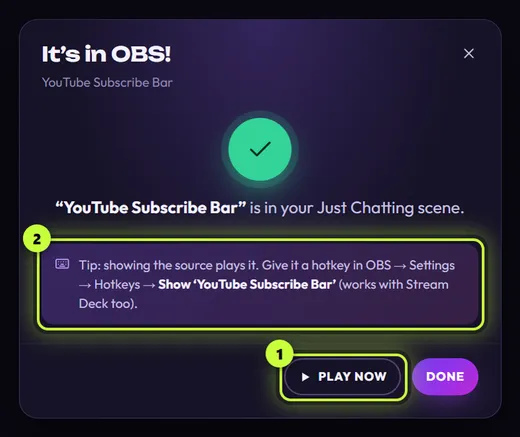
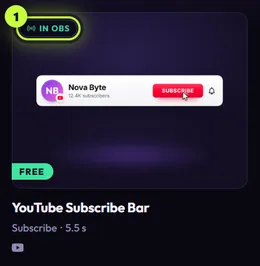
That’s it: the element is now a source in your OBS scene. Its card on the Elements tab gets a green In OBS badge, so you can see at a glance what’s already on your stream.
Do I need to keep the app open?
Section titled “Do I need to keep the app open?”No. An element in OBS runs from a file the app saved on your computer, so it keeps working with Stream UI Fun Studio closed: it plays when OBS starts, when its scene appears, on its timer, and with your hotkey or Stream Deck button. You only need the app open to change an element (the app then updates it in OBS for you) and to use Play now.
Choose the scene
Section titled “Choose the scene”The Scene list shows all your OBS scenes, in the same order as in OBS. It starts on the scene that’s live right now.
If Studio Mode is on in OBS, the list starts on your Preview scene instead, with the note “Studio Mode is on: it goes into your Preview scene first.” The element appears on stream once you transition that scene live.
Want the same element in another scene too? Add it once, then open Add to my stream again and pick the other scene. See Change an element that’s already in OBS.
Choose where it sits
Section titled “Choose where it sits”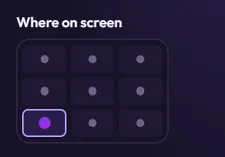
Click one of the nine spots: Top left, Top, Top right, Left, Centre, Right, Bottom left, Bottom or Bottom right. You can also move between them with the arrow keys. The grid starts on Bottom left (live widgets from packs start on Top left).
- The element keeps its own size and sits 48 pixels in from the edges of your OBS canvas (the picture size set in OBS’s Video settings).
- If it doesn’t fit inside those 48-pixel margins, it’s shrunk until it does. It’s never made bigger. For example, Socials Bar (1920 pixels wide) ends up a little narrower than a 1920 × 1080 canvas, and the square Instagram Phone Profile and YouTube Phone Channel (1080 × 1080) a little smaller. Drag the edges in OBS if you want it bigger.
- You can still drag or resize it in OBS afterwards. Just know that Update in OBS puts it back on the spot you pick in the app.
Full-screen elements
Section titled “Full-screen elements”Elements made for the whole screen, such as YouTube Channel Intro and YouTube End Screen (1920 × 1080), show “This one fills the whole screen.” instead of the grid. They’re sized to cover your whole canvas.
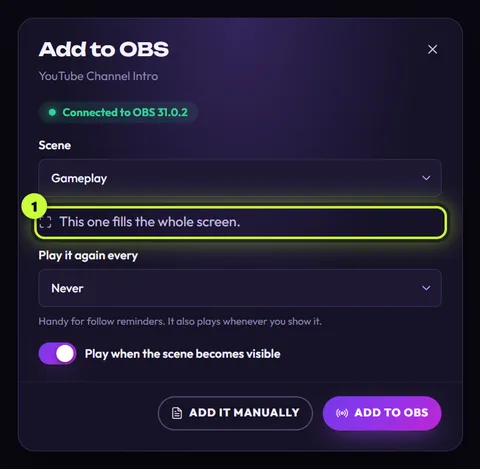
On a vertical (portrait) canvas, a full-screen element can’t fill the picture, so it’s shrunk to fit and centered.
Choose when it plays
Section titled “Choose when it plays”Every element (except live widgets, see below) plays once when its OBS source loads: right after you add it, when OBS starts, and each time the app updates it in OBS. These two options add more moments:
| Option | What it does | Starts as |
|---|---|---|
| Play it again every | Plays it again on a timer: Never, 5 minutes, 10 minutes, 15 minutes, 30 minutes or 60 minutes. Handy for follow reminders. | Never |
| Play when the scene becomes visible | Plays it each time it appears in your live picture: when you switch to its scene, or when you show the source (eye icon, hotkey or Stream Deck button) while its scene is live. | On |
Elements whose card says Stays on screen, such as Socials Bar, slide in once and then stay. While one is showing, these options don’t replay it.
Live widgets from packs (such as chat or goals) are always on screen, so the window doesn’t show these options, and It’s in OBS! has only Done (no Play now and no hotkey tip).
Play it with a hotkey or Stream Deck
Section titled “Play it with a hotkey or Stream Deck”The It’s in OBS! window gives you a tip (2): showing the source plays it. In OBS, open Settings → Hotkeys, find Show ‘YouTube Subscribe Bar’ (with your element’s name), and give it a key. It works with Stream Deck too.
This needs Play when the scene becomes visible to be on. Hide the source again after it plays, so the next press shows it, and plays it, again. Hotkeys and Stream Deck has the full setup.
What the app sets up in OBS
Section titled “What the app sets up in OBS”- A Browser source named after the element, like YouTube Subscribe Bar.
- If OBS already has a browser source with exactly that name (for example one you added by hand), the app reuses it: it points it at the app’s file, sets its size, position and options, and keeps it up to date from then on.
- If another kind of source or a scene has that name, the new source gets a number, like YouTube Subscribe Bar (2).
- The source shows a page the app keeps in its own folder on your computer, at the element’s own size and 60 frames per second. Leave those properties as they are, so the app can keep it up to date.
- If you picked a sound for the element, it plays through OBS, so you can set its volume in OBS’s Audio Mixer.
- You can move it, resize it or add filters in OBS like any other source.
If adding doesn’t work
Section titled “If adding doesn’t work”If something goes wrong after you click Add to OBS, the window says why:
| Message | What to do |
|---|---|
| “OBS was closed. Open it again and retry.” | Start OBS, then click Add to OBS again. |
| “OBS took too long to answer. Make sure it isn’t busy or frozen, then try again.” | Wait until OBS responds again (or restart it), then try again. |
| “OBS said no to that request. Try again, or add it manually.” | Check that the scene you picked still exists in OBS, then try again. |
| “OBS didn’t take it. Please try again, or add it manually.” | Try again. If it keeps happening, use Add it manually. |
If the connection to OBS changes while you add, the window switches to a connection message, like Open OBS Studio. Connect the app to OBS explains each one.
Add it manually sits at the bottom of the window whatever happens. It shows you how to add the element to OBS yourself: see Add to OBS by hand.