Your files, backups and uninstalling
Everything Stream UI Fun Studio knows about you lives in one folder on your computer: your channel, your element changes, the packs you unlocked and the files OBS reads. This page explains what’s in it, what to back up, how to move to a new PC and how to uninstall.
Open your data folder
Section titled “Open your data folder”-
Press Win + R to open the Run box.
-
Type
%APPDATA%\Stream UI Fun Studioand press Enter. -
File Explorer opens the folder. Its full address is usually
C:\Users\YourName\AppData\Roaming\Stream UI Fun Studio, whereYourNameis your Windows user name.
-
Click the desktop or open a Finder window, then press Cmd + Shift + G (or choose Go → Go to Folder…).
-
Type
~/Library/Application Support/Stream UI Fun Studioand press Return. -
Finder opens the folder. Its full address is
/Users/YourName/Library/Application Support/Stream UI Fun Studio, whereYourNameis your Mac user name. The Library folder is hidden in Finder, so typing the address is the easy way in.
-
Open your file manager (Files on Ubuntu) and press Ctrl + L to type an address.
-
Type
~/.config/Stream UI Fun Studioand press Enter. -
The folder opens. Its full address is
/home/yourname/.config/Stream UI Fun Studio. The.configfolder is hidden: press Ctrl + H in the file manager to show hidden folders.
What’s inside
Section titled “What’s inside”DirectoryStream UI Fun Studio/
- settings.json your channel (name, handles, counts), your stream app, the OBS connection and other app settings
Directoryprofile/ your channel picture
- …
Directoryinstances/ your changes to each element, and pictures you uploaded to a single element
- …
Directorypacks/ the packs you unlocked
- …
Directoryobs/ the files OBS and other stream apps show for elements you added. Keep this folder.
- index.json the list of elements the app added to OBS
- … one folder per element
Directorythumbs/ card pictures that show your channel (the app makes them again if they’re missing)
- …
- catalog.json a saved copy of the store’s product list
- licenses.json license keys of packs that need one, locked to your user account on this computer
Directorylogs/
- main.log the app’s notes about what it did, handy when you ask for help
Directoryupdates/ a downloaded app update (deleted again after the update)
- …
You’ll also see folders like Cache, GPUCache and Local Storage. They belong to the browser engine built into the app and remember small things, like the filters you picked on the Elements tab. Leave them alone.
Not in this folder
Section titled “Not in this folder”- Videos you download go to
Videos\Stream UI Fun StudioMovies/Stream UI Fun StudioVideos/Stream UI Fun Studioin your home folder by default. The save window lets you pick another place. See Download a video. - HTML folders you save from More formats are wherever you saved them.
- Your purchases are always in your Gumroad library too, so you can download them again any time.
What to back up
Section titled “What to back up”The app has no backup button, but backing up is just copying a folder.
-
Close Stream UI Fun Studio.
-
Press Win + R, type
%APPDATA%and press Enter. File Explorer opens the folder that holds your data folder. In Finder, press Cmd + Shift + G, type~/Library/Application Supportand press Return. Finder opens the folder that holds your data folder. In your file manager, press Ctrl + L, type~/.configand press Enter. The folder that holds your data folder opens. -
Click the Stream UI Fun Studio folder once and press Ctrl + CCmd + C. Then open your USB stick, external drive or cloud folder and press Ctrl + VCmd + V.
-
Also copy any videos you want to keep from
Videos\Stream UI Fun StudioMovies/Stream UI Fun StudioVideos/Stream UI Fun Studio.
To bring a backup back on the same computer and user account:
-
Close Stream UI Fun Studio.
-
Press Win + R, type
%APPDATA%and press Enter. In Finder, press Cmd + Shift + G, type~/Library/Application Supportand press Return. In your file manager, press Ctrl + L, type~/.configand press Enter. -
Copy your backed-up Stream UI Fun Studio folder from your USB stick, drive or cloud folder, and paste it here with Ctrl + VCmd + V. When Windows asks, choose Replace the files in the destination.When Finder asks, choose Replace.When your file manager asks, choose to replace (or merge) the folder.
Move to a new computer
Section titled “Move to a new computer”The reliable way is a fresh start. It takes a few minutes and your purchases come back from Gumroad, but your changes to elements and your copies don’t come along: you make them again on the new PC (or try copying your data folder, see the note below).
-
Install Stream UI Fun Studio on the new computer.
-
Set up your channel again: name, picture, handles and counts.
-
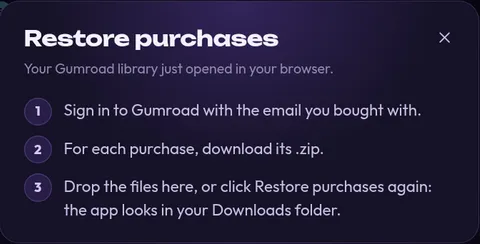
Go to Store → My purchases and click Restore purchases. Your Gumroad library opens in your browser.
If there are no unlock files in your Downloads folder yet, the app shows what to do next:
-
In Gumroad, sign in with the email you bought with and download each purchase’s .zip.
-
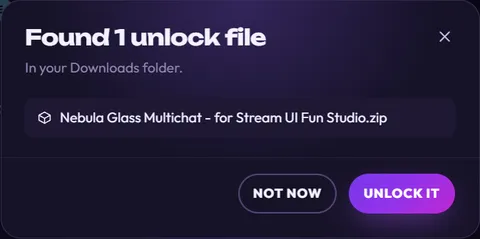
Back in the app, click Restore purchases again. It finds the files in your Downloads folder. Click Unlock all (or Unlock it for one file).
-
If a pack asks for a license key, enter it again. Keys are locked to each computer, and each computer counts as one use of the key. See License keys.
-
Open each element you use and set it up again (colors, text, sound). Copies you made need to be made again with Make a copy.
-
Connect the app to OBS (Auto-detect password finds the password again) and add your elements with Add to my stream.
-
Copy over any videos you downloaded on the old computer.
Uninstall the app
Section titled “Uninstall the app”-
Close Stream UI Fun Studio.
-
Open Windows Settings → Apps → Installed apps (on Windows 10: Apps & features).
-
Find Stream UI Fun Studio, click it (or its … menu) and choose Uninstall.
-
Quit Stream UI Fun Studio (Cmd + Q). Closing the window isn’t enough on a Mac.
-
Open Finder → Applications.
-
Drag Stream UI Fun Studio to the Trash (or select it and press Cmd + Delete), then empty the Trash.
-
Close Stream UI Fun Studio.
-
Open a terminal and run
sudo apt remove stream-ui-fun-studio. Or find Stream UI Fun Studio in your software center (App Center on Ubuntu) under installed apps and click Uninstall.
Your data folder may stay on your computer after you uninstall. That’s handy: if you install the app again later, your channel, settings and unlocked packs are still there.
Remove everything
Section titled “Remove everything”-
Uninstall the app (above).
-
Remove the sources the app added from your scenes in OBS or your other stream app.
-
Delete the folder
%APPDATA%\Stream UI Fun Studio~/Library/Application Support/Stream UI Fun Studio~/.config/Stream UI Fun Studio.
Your purchases stay in your Gumroad library, so you can unlock them again whenever you come back.