Test your elements
A few minutes of testing saves surprises on stream. Here’s how to test your play events in the app and in OBS, so you see each element play exactly when you expect, followed by a checklist to run before every stream.
In the app: Replay
Section titled “In the app: Replay”The preview in the editor plays by itself and loops, so you see every change a moment after you make it. To watch it again from the start, click Replay (1) under the preview.
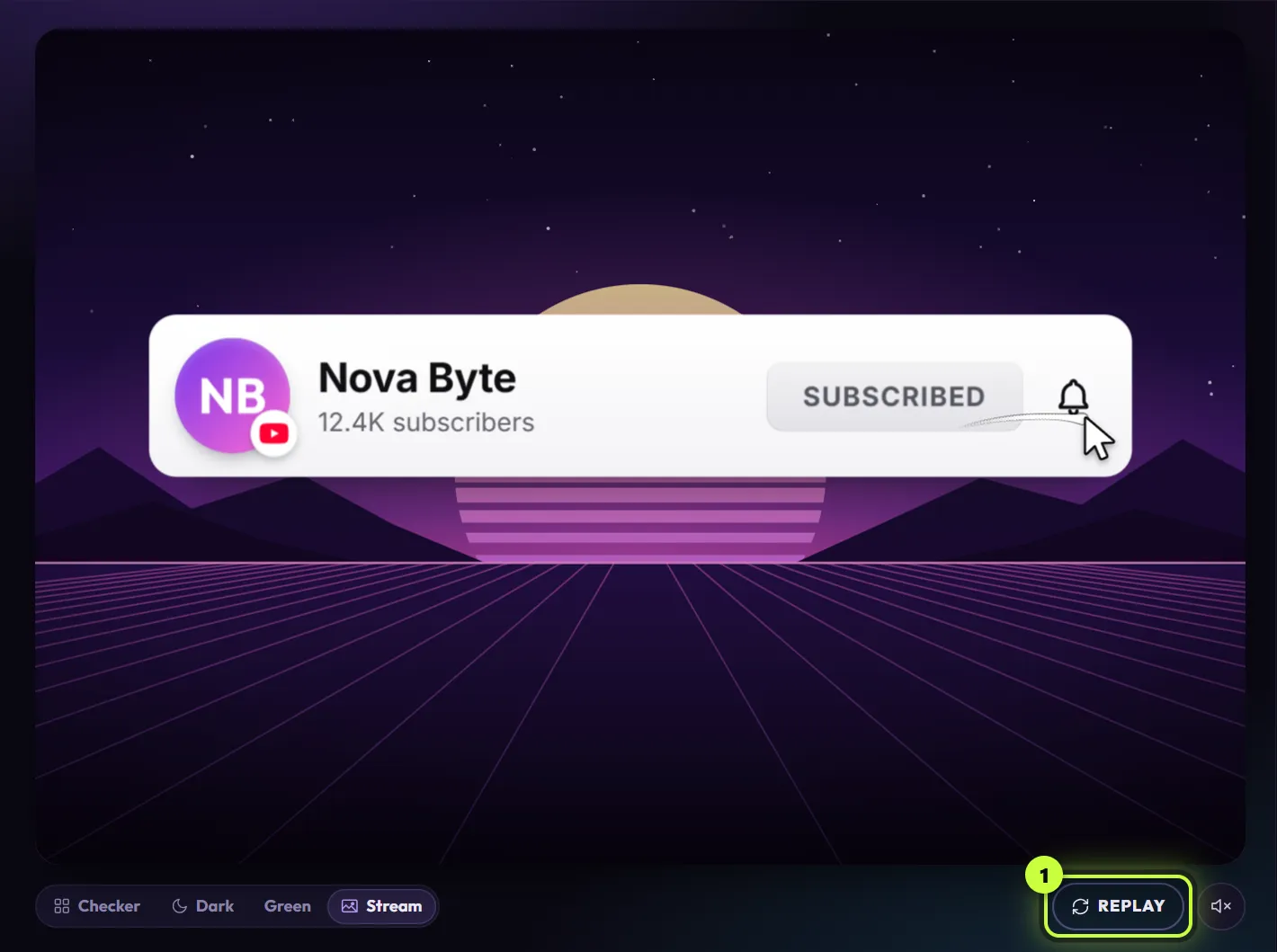
- Pick Stream under the preview to see the element over a sample stream.
- The preview starts muted. Click the speaker button next to Replay to hear the element’s sound.
- Elements that stay on screen play once and stay. Click Replay to see them slide in again. If animations are turned off in your computer’s settings, every preview plays once instead of looping.
- If you see “The preview hit a problem. Try Replay, or reset the settings.”, click Replay. If that doesn’t help, see Make copies and reset changes.
The preview only plays in the app. To see the element on your stream, test it in OBS.
In OBS: Play now
Section titled “In OBS: Play now”Right after you add an element (or update it), the It’s in OBS! window has a Play now button (1). Click it and the element plays in OBS. The app confirms with “Playing in OBS”.
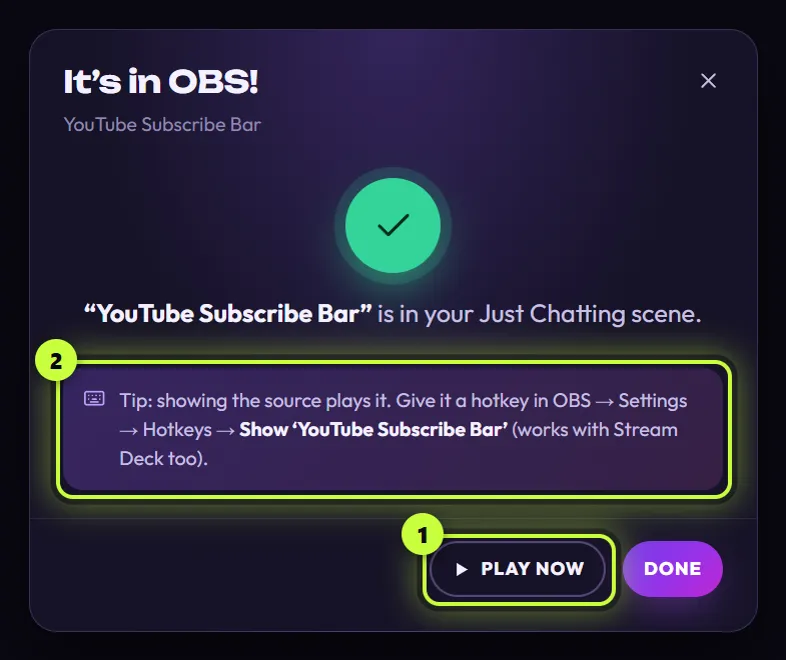
- Play now plays the element even when its source is hidden or its scene isn’t live, and then you won’t see it. Switch OBS to that scene first.
- “This source isn’t in OBS any more. Add it again.” means the source was deleted in OBS. Click Done, then Add to my stream again.
- Play now is only in this window. To test later, hide and show the source instead (below). Don’t send the element again just to get Play now: clicking Update in OBS puts it back in the spot you pick and resets its play options to what the dialog shows.
In OBS: hide and show the source
Section titled “In OBS: hide and show the source”This tests Play when the scene becomes visible, and it’s the same thing your hotkeys and Stream Deck buttons do.
- In OBS, switch to the scene with the element.
- In the Sources list, click the eye icon next to the element to hide it.
- Click the eye icon again to show it. The element plays.
- Switch to another scene and back. The element plays each time its scene goes live.
In Studio Mode, the element plays when you click Transition, not while its scene is only in Preview. To test your keys, press Hide, then Show (Hotkeys and Stream Deck).
Nothing happens? Check that OBS is showing the scene with the element, that you hid the source before showing it, and that the element isn’t still playing from a moment ago (a new play doesn’t interrupt a running one).
Still nothing? The switch Play when the scene becomes visible may have been off when you added it. The app can’t show what you picked, so set it again: in the Elements tab, click the element’s card, click Add to my stream, leave the switch on and click Update in OBS. This also resets the spot and the timer, so set those too (Change them later). Added it by hand? See Sources you added by hand.
Try things out in a test scene
Section titled “Try things out in a test scene”A test scene lets you try an element before it goes into your real scenes. Do this before you go live.
- In OBS, click + under Scenes, name the scene “Test” and click OK. Then click Test so it’s the scene OBS is showing.
- In the app’s Elements tab, click the element’s card. In the editor, click Add to my stream, pick Test under Scene, and click Add to OBS.
- In It’s in OBS!, click Play now before you click Done. Then hide and show the source with the eye icon. Hotkeys only work in the scene you set them under, so add keys under Test if you want to try them here (Hotkeys and Stream Deck).
- Happy with it? In the app, click Add to my stream again (the dialog is now Update it in OBS), pick your real scene, set the options and click Update in OBS. The element is added to that scene too.
After you change an element
Section titled “After you change an element”When you change an element that’s in OBS, the app updates the source a moment later, and the element plays once as it reloads. The card keeps its green In OBS badge.
If OBS was closed or didn’t answer, the card shows Refresh in OBS and the editor shows Click Refresh in OBS. Click Refresh (1) in the editor and the app says “Updated in OBS”. The app also refreshes waiting elements by itself the next time it reaches OBS.

Added it by hand? The app keeps the file up to date, but it can’t refresh your source. In OBS, double-click the source and click Refresh cache of current page. In other apps, use their refresh or reload option for browser sources. The element plays as it reloads.
Live widgets from packs
Section titled “Live widgets from packs”Chat and goal widgets from packs don’t play on cue, so there’s nothing to replay.
- Chat widget in OBS: type a message in your Twitch chat and watch it show up.
- Goal widget in OBS: it only moves for real Twitch subs, cheers or raids, depending on what it counts. To check its look and spot before that, turn on its Demo mode switch under Advanced (if it has one), then turn it off again.
- In a StreamElements overlay: goal widgets react to StreamElements’ Emulate test events for what they count. Test a chat widget with a real chat message.
StreamElements and downloaded videos
Section titled “StreamElements and downloaded videos”- StreamElements: the element plays once each time the overlay loads. To play it again, reload the overlay. In OBS, double-click the overlay’s browser source and click Refresh cache of current page. StreamElements’ Emulate buttons won’t play it, because the free elements don’t react to follows, subs or tips. Changed the element in the app? Paste the new code into StreamElements (StreamElements).
- Downloaded videos: play the video source in your streaming app and check that looping is on or off the way you want. A video doesn’t change when you edit the element: download it again (Download a video).
Pre-stream checklist
Section titled “Pre-stream checklist”Run through this before you go live:
- OBS is open, and your elements show the green In OBS badge, not Refresh in OBS. Click Refresh in the editor if needed.
- Open the app a few minutes early. If Auto-fetch once a day is on, the first time you open the app each day it checks your counts, and if they changed, elements in OBS that show them refresh and play once. After an app update, every element the app added to OBS reloads and plays once when the app starts. Better now than on stream. (Show your real follower counts)
- Switch through your scenes once. Each element is in the right scene and spot, and plays when its scene comes up.
- Your hotkeys and Stream Deck buttons work (Hide, then Show), and the sources you play on cue are hidden again.
- Reminders play on their timer, with different times so they play together less often. The app doesn’t show which time you picked, so if you’re not sure, set it again with Update in OBS.
- Elements with a sound are loud enough but not too loud. Watch OBS’s Audio Mixer while one plays: elements the app added show up there under their own name.
- Your StreamElements overlay loads, and the element plays once when it opens.
- Live widgets from packs: Demo mode is off, and a test message in your chat shows up in your chat box.
- You’re done editing. Once you’re live, changing an element that’s in OBS makes it play again on stream.