Download and install
Stream UI Fun Studio is a free app for Windows, macOS and Linux. This page shows you how to download it from streamui.fun, install it and open it for the first time. It only takes a couple of minutes.
What you need
Section titled “What you need”- A computer with Windows 10 or Windows 11.a recent version of macOS.a 64-bit Debian-based Linux, like Ubuntu 22.04 or newer, Debian, Linux Mint or Pop!_OS. The app comes as a
.debpackage. - A streaming app. With OBS Studio 28 or newer (it’s free), the app adds elements to OBS for you in one click. Streamlabs Desktop, XSplit Broadcaster, PRISM Live Studio, Meld Studio, TikTok LIVE Studio and StreamElements work too: the app gives you short step-by-step guides for them.Streamlabs Desktop, PRISM Live Studio, Meld Studio and StreamElements work too: the app gives you short step-by-step guides for them. (XSplit Broadcaster is Windows only, and TikTok LIVE Studio may not be available for Mac.)StreamElements works too, through OBS: the app gives you short step-by-step guides. (Streamlabs Desktop, XSplit, PRISM, Meld Studio and TikTok LIVE Studio don’t run on Linux.)
- Internet for the Store, for looking up your follower counts and channel picture, and for app updates.
You don’t need an account or a card. The free elements are free to use.
Download the installer
Section titled “Download the installer”-
Go to streamui.fun/download. You can also click Get the App at the top of any page on streamui.fun. In a narrower window it just says App, and on small screens it’s Get the Desktop App in the menu.
-
Click Download for WindowsmacOSLinux. The site puts your own system’s button first. The version number is shown under the button.
Or download it straight from here: Stream UI Fun Studio for Windows. The Mac version isn’t out yet: for now the download page has Windows and Linux only. Or download it straight from here: Stream UI Fun Studio for Linux (.deb).The file is called
StreamUIFunStudio-Setup-followed by the version, for exampleStreamUIFunStudio-Setup-1.0.0.exe.The file is calledStreamUIFunStudio-followed by the version, for exampleStreamUIFunStudio-1.0.0.dmg.The file is calledstream-ui-fun-studio_followed by the version, for examplestream-ui-fun-studio_1.0.0_amd64.deb. Your browser saves it in your Downloads folder. -
If your browser warns that the file isn’t commonly downloaded, open the warning’s menu and choose Keep. Browsers often say this about apps that are new or not downloaded very often.
Install the app
Section titled “Install the app”-
Open your Downloads folder and double-click
StreamUIFunStudio-Setup-<version>.exe. -
If Windows shows Windows protected your PC, click More info, then click Run anyway. The next section explains why this can happen.
-
Let the installer finish, then open Stream UI Fun Studio. If it doesn’t open by itself, press the Windows key, type Stream UI Fun Studio and press Enter.
Why Windows may warn you
Section titled “Why Windows may warn you”Windows checks new programs with a filter called Microsoft Defender SmartScreen. The Stream UI Fun Studio installer isn’t code-signed yet. Code signing is a paid certificate that tells Windows who made a program. So SmartScreen may not recognize the installer and may show Windows protected your PC. This is common for new apps from small teams. If you downloaded the file from streamui.fun, it’s safe to click More info and then Run anyway.
-
Open your Downloads folder and double-click
StreamUIFunStudio-<version>.dmg. A window opens with the app inside. -
Drag Stream UI Fun Studio onto the Applications folder in that window.
-
Open Applications in Finder and double-click Stream UI Fun Studio. Or press Cmd + Space, type Stream UI Fun Studio and press Return.
-
If your Mac says the app can’t be opened because Apple cannot check it, click Done (or OK). Open System Settings → Privacy & Security, scroll down and click Open Anyway next to Stream UI Fun Studio, then confirm. The next section explains why this can happen.
Why your Mac may warn you
Section titled “Why your Mac may warn you”macOS checks new apps with a feature called Gatekeeper. The Stream UI Fun Studio app isn’t signed and notarized by Apple yet. That’s a paid step that tells your Mac who made an app. So Gatekeeper may block it the first time you open it. This is common for new apps from small teams. If you downloaded the file from streamui.fun, it’s safe to click Open Anyway. You only have to do this once. Another way: Control-click the app in Applications, choose Open, then click Open again.
-
Open your Downloads folder and double-click
stream-ui-fun-studio_<version>_amd64.deb. Your software center (App Center on Ubuntu) opens. Click Install and type your password.Prefer the terminal? Open one in your Downloads folder and run
sudo apt install ./stream-ui-fun-studio_<version>_amd64.deb. -
Open Stream UI Fun Studio from your apps menu: press the Super key (the Windows key on most keyboards), type Stream UI Fun Studio and press Enter.
Why a .deb and not an AppImage
Section titled “Why a .deb and not an AppImage”The .deb package also sets up a small security rule (an AppArmor profile) that newer Ubuntu versions need before the app’s built-in browser engine can start safely. An AppImage or an unpacked folder can’t do that, and the app won’t start on Ubuntu 24.04 and newer. Always install the .deb.
Open it for the first time
Section titled “Open it for the first time”When the app starts, you see Loading your elements… for a moment. Then the Your channel panel slides in from the right.
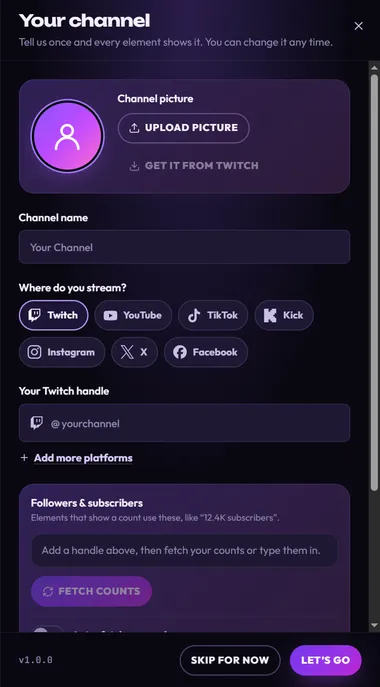
Fill it in once and every element shows your channel name and picture. The Quick start walks you through it and gets your first element on stream.
Not ready yet? Click Skip for now. You can come back to it any time from Set up your channel at the top right of the app.
Keep the app up to date
Section titled “Keep the app up to date”The app checks for a new version each time you start it. When one is ready, a round download button pulses at the top right, next to your channel. Click it and the app downloads the update, installs it and restarts.Click it and the download page opens, so you can install the new version over the old one. See Update the app for details.
Uninstalling
Section titled “Uninstalling”Your channel, your settings and the packs you unlocked are stored in a folder on your computer. Before you remove the app or move to a new computer, read Your files, backups and uninstalling.