TikTok LIVE Studio
TikTok LIVE Studio takes your elements as a video. You save the element as a WebM video with a see-through background, then add that file to TikTok LIVE Studio as a media source.
Save the element as a video
Section titled “Save the element as a video”There are two ways to save the same video. The Download button in the editor is the quickest, and it doesn’t change any of your settings.
-
In Elements, click the element you want. It opens in the editor, where you can customize it first.
-
Under Add to my stream, click Download (1).
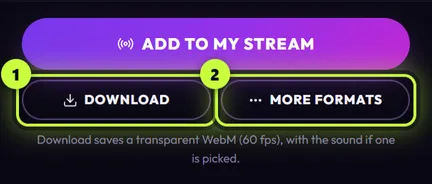
-
A save window opens in your VideosMovies folder, inside Stream UI Fun Studio. The file name is already filled in, for example
YouTube Subscribe Bar - Nova Byte.webm. Click Save, or pick another place first. -
A progress card appears in the bottom-right corner of the app. When it says Saved with the file name, the video is ready. Click Show in folder on the card if you want to see the file.
The app’s TikTok LIVE Studio guide has the same video behind its own Download button, next to the steps for TikTok LIVE Studio. To reach it, you set What do you stream with? to Something else. That changes what Add to my stream opens for every element: if you also add elements to OBS with one click, use the Download button instead.
Already picked Something else? Skip to step 3.
-
Click your channel name at the top right of the app. If you haven’t set up your channel yet, it says Set up your channel. The Your channel panel opens.

-
Scroll down to What do you stream with?, click Something else, then click Save. You only do this once: the app remembers it.
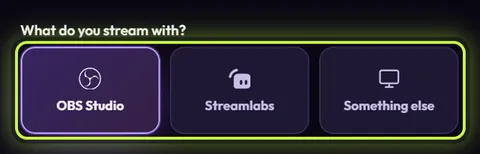
OBS Studio is picked in this picture. Click Something else instead. -
In Elements, click the element you want, then click Add to my stream at the bottom right of the editor.
-
The Add it to your stream window opens on Streamlabs Desktop, the first app in the list. That’s normal: it does this every time. In the list of apps on the left, click TikTok LIVE Studio.
-
Under The video, click Download (1).
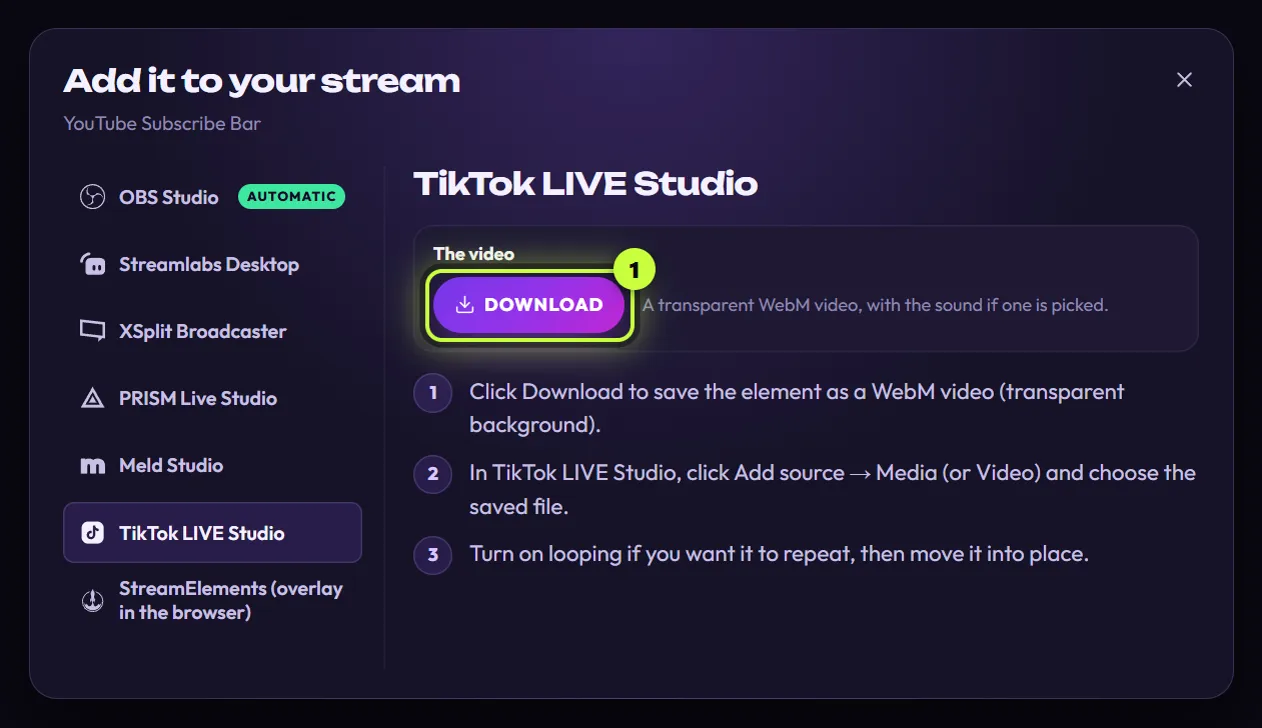
The guide's Download button (1) saves the element as a video. -
A save window opens in your VideosMovies folder, inside Stream UI Fun Studio. The file name is already filled in, for example
YouTube Subscribe Bar - Nova Byte.webm. Click Save, or pick another place first. -
While it saves, the button shows the progress, like Exporting 42% (or Waiting… if another video is still saving). When it’s done, the note says Saved “…” with the file name, and a Show in folder button appears. Click it if you want to see the file.
What you get:
- Format: a WebM video with a see-through background, at 60 frames per second.
- Size: the element’s own size, for example 1000 × 340.
- Length: one play of the animation. Elements that stay on screen, like Socials Bar, make a 10-second video.
- Sound: only if you picked a sound for the element (see Advanced settings).
Need something else, like a longer Socials Bar video? More formats has more choices.
Add it in TikTok LIVE Studio
Section titled “Add it in TikTok LIVE Studio”These are the app’s steps, with a little more detail.
-
In TikTok LIVE Studio, click Add source and choose Media (some versions call it Video).
-
Choose the video you saved. It’s in your VideosMovies folder, inside Stream UI Fun Studio, unless you saved it somewhere else.
-
If you want it to repeat, turn on looping in the source’s settings.
-
Move and resize it to where you want it on your stream.
How it plays in TikTok LIVE Studio
Section titled “How it plays in TikTok LIVE Studio”It’s a normal video, so TikTok LIVE Studio decides when it plays:
- Looping off: it plays once when the source starts. The last frame of the animation is see-through, so it simply disappears at the end.
- Looping on: it plays over and over, one play straight after the other.
The app’s play options (Play it again every, Play when the scene becomes visible, Play now) only work with OBS Studio, and the video doesn’t react to follows or gifts. How elements play explains the difference.
Update it after you change something
Section titled “Update it after you change something”A video is a snapshot: changing the element in the app doesn’t change a video you already saved.
-
Make your changes in the app’s editor.
-
Save the video again (the editor’s Download or the guide’s Download). If the old file is still there, the app suggests a new name ending in (2).
-
In TikTok LIVE Studio, open the media source’s settings and choose the new file.
If something goes wrong
Section titled “If something goes wrong”- Download is greyed out and the app says “Video export needs a part of the app that’s missing. Reinstall to fix it.” Reinstall Stream UI Fun Studio (see Download and install).
- You see an error instead of Saved, for example “This element couldn’t be recorded. Try again, or reset its settings.” Click Download again, or Retry on the progress card. Download a video explains each message.
- Clicked Cancel in the save window? Nothing is saved. Click Download again.
More fixes are in Troubleshooting.