Update the app
Stream UI Fun Studio tells you when a new version is out. On Windows it updates itself in one click.On WindowsmacOSLinux, it takes you to the download page and you install the new version over the old one. Your channel, your element changes, your purchases and the elements you added to OBS all stay as they are.
How you know there’s an update
Section titled “How you know there’s an update”Each time you open the app, it checks for a new version a few seconds after it starts. When there is one, a round button with a download arrow appears in the top bar, just left of your profile chip. It glows and pulses so you notice it.

The button has no text. Point at it to see a tip like “Version 1.1.0 is out. Click to update and restart.”“Version 1.1.0 is out. Click to download it.”
No button means there’s nothing to install. There is no “Check for updates” menu and no “You’re up to date” message. If the app couldn’t check, for example because you were offline, it stays quiet and checks again the next time you open it.
Update in one click
Section titled “Update in one click”The app can only install updates by itself on Windows. On WindowsmacOSLinux, clicking the update button opens the download page in your browser. Then follow Update by hand below. It takes a minute.
-
Finish what you’re doing. Changes to elements save automatically, so there’s nothing to save first.
-
Click the round update button (1 in the picture above).
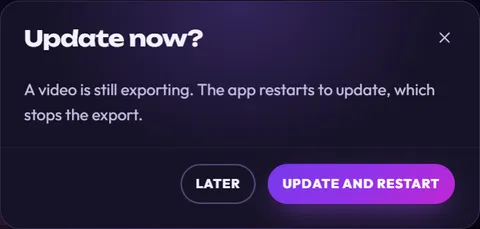
If a video is still exporting, the app asks first: Update now? Choose Update and restart to update now (this stops the export), or Later to let the video finish and click the update button again afterwards.
-
The update downloads. A pink ring fills up around the button while it does. Point at the button to see the progress, like “Downloading version 1.1.0… 45%”.

-
When the download is done, the app checks the file, closes, installs the new version and opens again by itself. While this happens the tip reads “Installing version 1.1.0. The app restarts in a moment.”
If Windows shows the installer window instead of updating quietly, follow its steps.
That’s it. The first time the new version starts, it refreshes the elements you added to OBS so they use the new version too. If OBS isn’t open at that moment, they’re marked Refresh in OBS and update as soon as the app reaches OBS again. See Change an element that’s already in OBS.
If the update doesn’t work
Section titled “If the update doesn’t work”A red message appears at the bottom of the window, and the update button stays so you can try again.

| Message | What to do |
|---|---|
| “Couldn’t download the update. Check your internet connection and try again.” | Check that you’re online, then click the update button again. |
| “Couldn’t save the update. Free some disk space and try again.” | Your drive is nearly full. Empty the Recycle BinTrash or delete big files you don’t need, then try again. |
| “The downloaded update didn’t match what we published, so it wasn’t installed. Try again in a while.” | The app checks every update before it runs it. This file got damaged on the way, so nothing was installed. Wait a little and try again. |
| “Couldn’t start the update installer. Download the new version from streamui.fun instead.” | Update by hand (below). |
| “Something went wrong. Try again, or restart Stream UI Fun Studio if it keeps happening.” | Something unexpected went wrong. Try again, restart the app, or update by hand. |
| “There is no update to install right now.” | The update isn’t available any more. Restart the app to check again. |
Still stuck? Get help.
Update by hand
Section titled “Update by hand”You can always install the newest version yourself. This is also the way to go if the tip on the update button says “Click to download it”: clicking it opens the download page in your browser.
-
Close Stream UI Fun Studio.
-
Go to streamui.fun/download and click Download for Windows.
-
Open your Downloads folder and double-click the file you just downloaded. Its name looks like
StreamUIFunStudio-Setup-1.1.0.exe. It installs the new version over the old one.If Windows shows Windows protected your PC, click More info, then Run anyway (only for a file you got from streamui.fun). See Download and install.
-
Quit Stream UI Fun Studio (Cmd + Q).
-
Go to streamui.fun/download and click Download for macOS.
-
Open your Downloads folder and double-click the file you just downloaded. Its name looks like
StreamUIFunStudio-1.1.0.dmg. -
Drag Stream UI Fun Studio onto the Applications folder. When your Mac asks, choose Replace.
If your Mac says the app can’t be opened, allow it in System Settings → Privacy & Security → Open Anyway (only for a file you got from streamui.fun). See Download and install.
-
Close Stream UI Fun Studio.
-
Go to streamui.fun/download and click Download for Linux.
-
Open your Downloads folder and double-click the file you just downloaded. Its name looks like
stream-ui-fun-studio_1.1.0_amd64.deb. Click Install (or Update). It installs the new version over the old one.In a terminal,
sudo apt install ./stream-ui-fun-studio_1.1.0_amd64.debin your Downloads folder does the same.
Your channel, settings and purchases live in a separate folder, so they stay where they are. See Your files, backups and uninstalling.
Which version do I have?
Section titled “Which version do I have?”Look at the top right of the app, next to your channel name: the small number (for example v1.0.0) is the version you have. Point at it and the tip says App version. You’ll also find it at the bottom left of the Your channel panel.
After an update, the number changes to the new version. Add it when you ask us for help: it helps us find the problem faster.