Connect the app to OBS
To put elements into OBS for you, Stream UI Fun Studio talks to OBS through OBS’s WebSocket server: a built-in setting that lets other apps on your computer work with OBS. You turn it on once. After that, the app connects by itself whenever it needs to.
Turn on the WebSocket server (one time)
Section titled “Turn on the WebSocket server (one time)”-
Open OBS Studio.
-
In OBS’s menu bar, click Tools → WebSocket Server Settings.
No WebSocket Server Settings in the Tools menu? Your OBS is older than version 28. Update OBS Studio first.
-
Tick Enable WebSocket server.
-
Leave the other settings as they are. The app can find the password on its own.
-
Click Apply, then close the settings window.
-
Back in Stream UI Fun Studio, click I’ve done it if the Add to OBS window is open. If it isn’t, click Add to my stream on any element.
Next, the window usually says OBS needs its password. That’s normal: carry on with Connect with Auto-detect password.
You don’t have to remember these steps: when the server is off, the Add to OBS window shows them for you.
Connect with Auto-detect password
Section titled “Connect with Auto-detect password”OBS usually protects its WebSocket server with a password. You don’t need to look it up: the app can read it from OBS’s settings on this computer.
-
Open OBS, then click Add to my stream on an element. If the Add to OBS window says OBS needs its password, carry on.
-
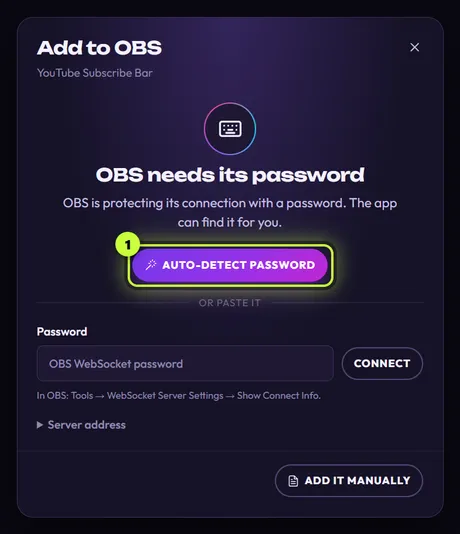
Click Auto-detect password (1).
-
The app says Looking in OBS’s settings…, then Found it. Connecting… (or OBS doesn’t need a password. Connecting…). A moment later the window shows Connected to OBS, and you can add your element.
The app reads OBS’s settings only when you click Auto-detect password, and it never shows the password on screen. It remembers it on this computer, so you normally do this only once. If OBS uses a different port from the usual 4455 (the port is the number OBS shows as Server Port in the same settings window), Auto-detect picks that up too.
If Auto-detect can’t help, it tells you:
| Message | What to do |
|---|---|
| “Couldn’t find OBS’s settings on this computer. Paste the password instead: in OBS open Tools → WebSocket Server Settings → Show Connect Info.” | Paste the password yourself. |
| “Found the settings, but OBS didn’t accept them. Paste the password from Tools → WebSocket Server Settings → Show Connect Info.” | Paste the password yourself. |
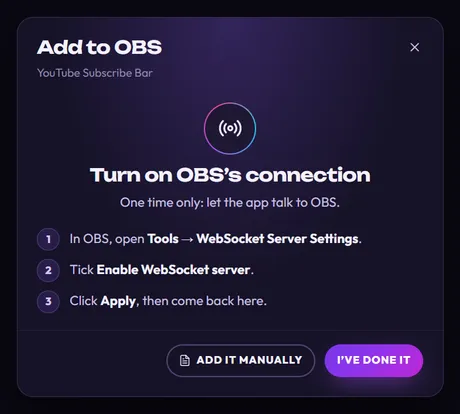
If Auto-detect finds that the server is switched off, the window shows Turn on OBS’s connection. Follow the steps above.
Paste the password yourself
Section titled “Paste the password yourself”-
In OBS, open Tools → WebSocket Server Settings and click Show Connect Info.
-
Copy the password shown there. It’s long, so copy it rather than typing it.
-
In the Add to OBS window, click the Password box and paste it (Ctrl + VCmd + V).
-
Click Connect, or press EnterReturn. The window says Connecting…, then shows Connected to OBS.
Connection messages
Section titled “Connection messages”The Add to OBS window always tells you what’s in the way. While it isn’t connected, it checks OBS again every 3 seconds, so once you’ve fixed the problem it usually moves on by itself.
Almost every message also has Add it manually at the bottom, if you’d rather add the element to OBS yourself.
OBS Studio isn’t installed
Section titled “OBS Studio isn’t installed”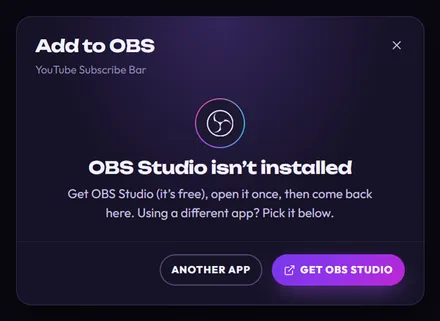
The app can’t find OBS on this computer.
- Click Get OBS Studio to open the OBS download page. Install OBS, open it once, then come back.
- Already installed it? Open OBS once: the app looks for the settings OBS creates on its first start.
- Streaming with a different app? Click Another app to see the guides for other streaming apps.
Open OBS Studio
Section titled “Open OBS Studio”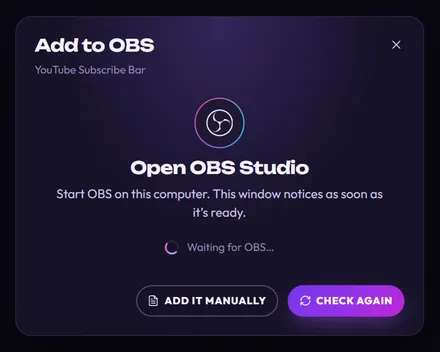
OBS is installed but not running. Start OBS on this computer. The window shows Waiting for OBS… and moves on as soon as OBS is ready. You can also click Check again.
Turn on OBS’s connection
Section titled “Turn on OBS’s connection”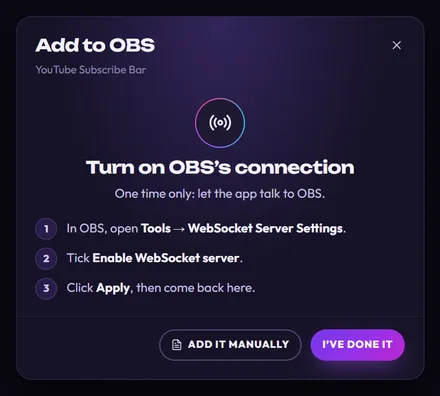
OBS is running, but the app can’t connect to its WebSocket server. Follow the three steps in the window (the same as above), then click I’ve done it.
No WebSocket Server Settings in OBS’s Tools menu? Your OBS is older than version 28: update OBS Studio first.
Server already on? The app normally looks for it on port 4455. In the same OBS window, check the Server Port: if it’s a different number, change it to 4455 and click Apply.
OBS needs its password
Section titled “OBS needs its password”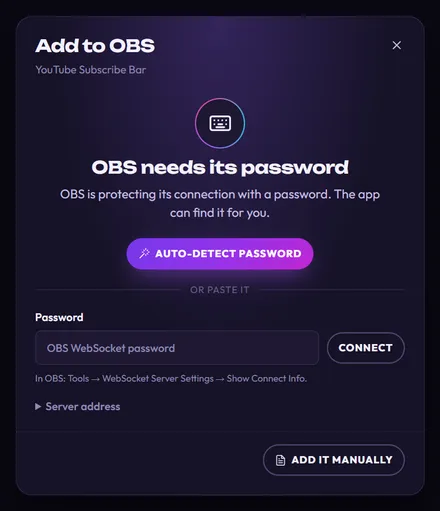
This is normal: OBS is protecting its connection with a password. Click Auto-detect password and the app finds it for you. Or paste it yourself. The hint under the box shows where to find it in OBS: Tools → WebSocket Server Settings → Show Connect Info.
That password didn’t work
Section titled “That password didn’t work”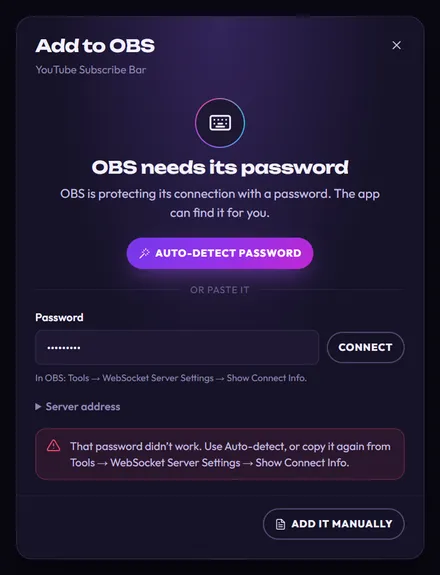
OBS turned down the password you pasted. Click Auto-detect password, or copy the password from OBS again and paste the whole thing.
If you click Connect with an empty box, it says: “OBS wants a password. Use Auto-detect, or paste it from Tools → WebSocket Server Settings → Show Connect Info.”
Can’t reach OBS
Section titled “Can’t reach OBS”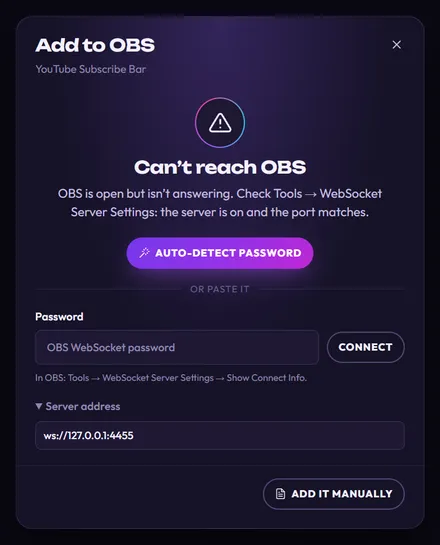
OBS seems to be open, but it isn’t answering the app. Maybe OBS is busy, or the app is looking at the wrong address. Here the Server address section is open, so you can change where the app looks for OBS (normally ws://127.0.0.1:4455).
-
In OBS, open Tools → WebSocket Server Settings and check that Enable WebSocket server is ticked.
-
In the app, click Auto-detect password. It also picks up the port OBS uses.
-
Or set it by hand: note OBS’s Server Port, type
ws://127.0.0.1:followed by that number into Server address (for examplews://127.0.0.1:4455), paste the password and click Connect. Always use127.0.0.1, not the Server IP that Show Connect Info shows. -
Still stuck? Close OBS, open it again, and wait for the window to notice.
You might also see these messages here:
| Message | What it means |
|---|---|
| “OBS isn’t answering. Check that it’s open and its WebSocket server is turned on.” | Nothing answered at that address. Check the steps above. |
| “OBS took too long to answer. Make sure it isn’t busy or frozen, then try again.” | OBS is busy. Wait a moment, or restart OBS, then try again. |
| “The OBS address must look like ws://127.0.0.1:4455.” | The Server address isn’t written the way the app expects. Type it exactly like the example, with your port at the end. |
Update OBS Studio
Section titled “Update OBS Studio”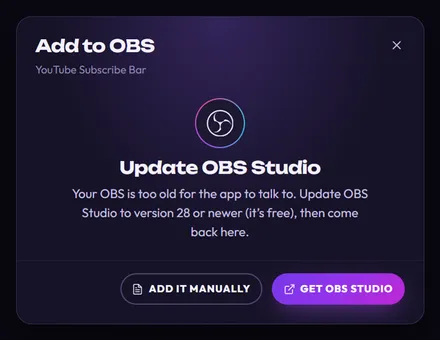
Your OBS is older than version 28, so the app can’t talk to it. Click Get OBS Studio, install the latest version, open it, then come back. Until then, adding it by hand still works.
OBS is on another computer
Section titled “OBS is on another computer”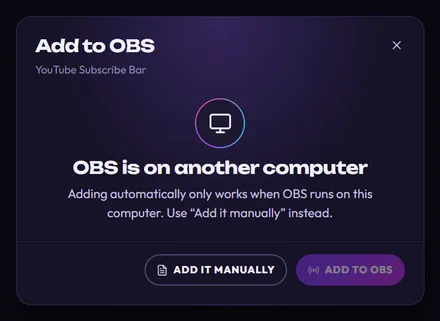
The Server address points at a different computer. Adding automatically only works with OBS on the same computer as the app, so Add to OBS is greyed out.
- OBS really is on another PC: Add it manually shows a file on this computer, which OBS on the other PC can’t open. Use the HTML folder instead: see OBS on a second PC.
- OBS is on this computer after all: you probably typed your PC’s network address into Server address, for example the Server IP from OBS’s Show Connect Info (like
192.168.1.20). The app treats every address except127.0.0.1(orlocalhost) as another computer. To fix it:- Close OBS for a moment. The window switches to Can’t reach OBS.
- Click Auto-detect password, which also points the app back at this computer. Or set Server address to
ws://127.0.0.1:4455, paste OBS’s password into Password and click Connect. - The window now says Open OBS Studio. Open OBS again, and it connects by itself.
What the app does with the connection
Section titled “What the app does with the connection”The app uses OBS’s connection to add its own elements to your scenes, keep them up to date, and play them when you click Play now. It doesn’t change your other sources, except a browser source that already has the element’s exact name, which it reuses (see What the app sets up in OBS). The password stays on this computer.