Add to OBS by hand
You can add any element to OBS yourself as a browser source (a source that shows a web page) by pasting one file path. If OBS runs on a different computer, use the HTML folder instead: see OBS on a second PC.
When to add it by hand
Section titled “When to add it by hand”- You’d rather not turn on OBS’s WebSocket server.
- The automatic way won’t connect, and you want to get going.
- OBS runs on another computer. Go to OBS on a second PC.
Otherwise, the automatic way is easier: it keeps OBS up to date when you change the element, and gives you the play options.
Open the steps in the app
Section titled “Open the steps in the app”There are two ways in:
- Open the element, click Add to my stream, then click Add it manually at the bottom of the Add to OBS window. It’s there in almost every view, even while the app can’t connect to OBS.
- If Add to my stream opens the Add it to your stream guides instead (it does when What do you stream with? is Streamlabs or Something else), click OBS Studio on the left. The same file and steps are under Or do it yourself.
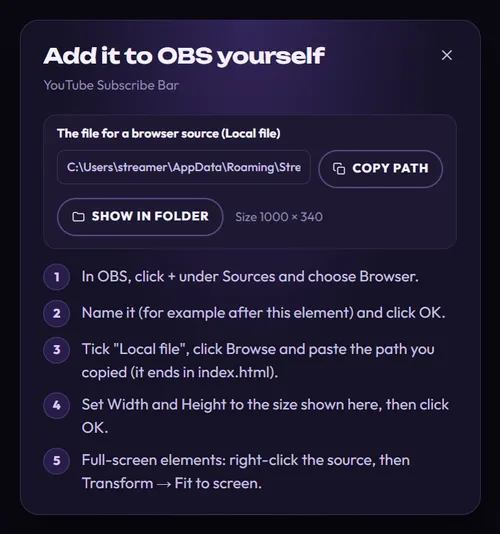
The Add it to OBS yourself window shows the file, its size and the steps:
Add the browser source in OBS
Section titled “Add the browser source in OBS”-
In the app, click Copy path. It says Copied for a moment. Note the size next to Show in folder, for example Size 1000 × 340.
-
In OBS, click + under Sources and choose Browser.
-
Name it (for example after the element) and click OK.
-
Tick Local file and click Browse. In the window that opens, paste the path into the File name boxpress Cmd + Shift + G, paste the path with Cmd + V and press Returnpress Ctrl + L and paste the path with Ctrl + V and click Open. The path ends in
index.html. -
Set Width and Height to the size shown in the app. If you picked a sound for the element, also tick Control audio via OBS, so its sound goes through OBS and you can set its volume in the Audio Mixer. Then click OK.
-
Full-screen elements (1920 × 1080): right-click the source, then Transform → Fit to screen.
-
Drag the source where you want it in your scene.
How a hand-added source behaves
Section titled “How a hand-added source behaves”| Added by hand | Added automatically | |
|---|---|---|
| When you change the element | The app updates the file, but OBS doesn’t reload it by itself. Refresh it in OBS (see below). | OBS updates by itself. |
| When it plays | When it loads: when OBS starts, and when you refresh it. | When it loads, plus Play it again every, Play when the scene becomes visible and Play now. |
| In OBS badge in the app | No: the app doesn’t keep track of sources you add yourself. | Yes. |
To see your changes in OBS, double-click the source to open its properties and click Refresh cache of current page. The element reloads and plays.
Keep the file where it is: it lives in the app’s own folder, and the source reads it from there.
OBS on a second PC
Section titled “OBS on a second PC”Lots of streamers play on one computer and stream from another. The automatic way and Add it manually both need OBS on the same computer as the app, because the file path points at this computer. Instead, save the element as an HTML folder and copy it to your streaming PC.
-
Open the element in the app and customize it.
-
Click More formats under Add to my stream (for live widgets from packs, Get the files).
-
Choose HTML folder: “The element as a web page folder, for OBS on another PC or advanced setups.”
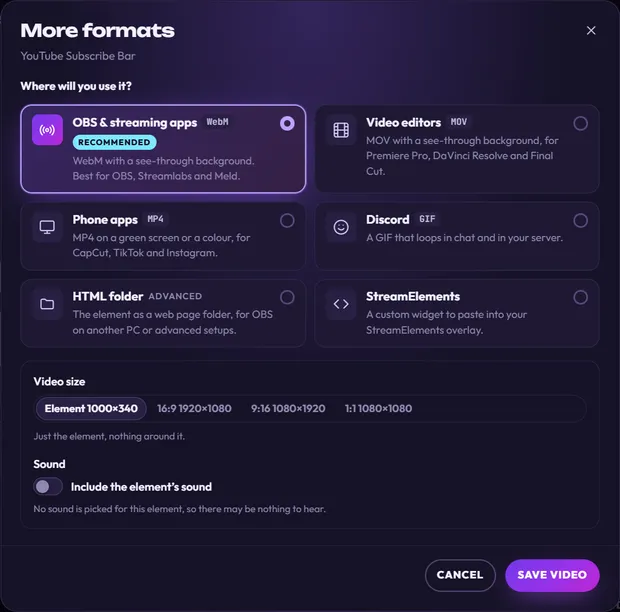
Click HTML folder (bottom left). The button at the bottom then changes from Save video to Save folder. -
Click Save folder and pick where to save it, such as a USB stick or a shared network folder. The app makes a new folder there, named after the element and your channel, like YouTube Subscribe Bar - Nova Byte. A message says Folder saved. with a Show in folder button.
-
Copy that whole folder to the streaming PC. Put it somewhere it can stay.
-
On the streaming PC, in OBS, click + under Sources, choose Browser, name it and click OK.
-
Tick Local file, click Browse and choose
index.htmlinside the folder. -
Set Width and Height to the element’s size. The folder’s
README.txtfile tells you the size, for example “Set the width to 1000 and the height to 340.” If the element has a sound, also tick Control audio via OBS. Click OK.
Inside the folder you’ll find index.html (the page OBS shows), README.txt (the size and these steps) and the files the element needs. Keep them all together. The same folder also works in Streamlabs Desktop, XSplit Broadcaster, PRISM Live Studio and Meld Studio on the other PC, as a browser source pointing at index.html.
An element in an HTML folder plays when it loads. The tip above about OBS’s reload options works for it too.