Buy a pack in the app
Buying from the Store tab takes a few minutes: you pay on Gumroad in your web browser, download one file, and the app unlocks it. Here’s the whole trip, from the buy button to your new elements.
Buy and unlock
Section titled “Buy and unlock”-
Click Store in the top bar, then Shop if it isn’t already open. Find the product you want and click it to open its page.
-
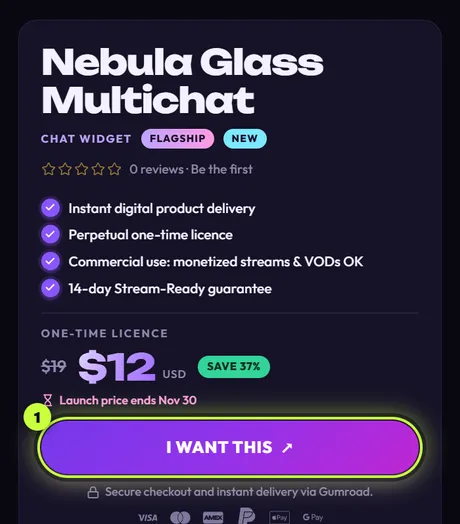
Click the buy button: I WANT THIS ↗ (1) on a product, or GET THE SET ↗ on a set. Gumroad’s checkout opens in your default web browser.
-
Straight away, even before you pay, the app shows Thanks for your purchase! It’s getting ready to catch your file, and starts watching your Downloads folder for it. Leave this screen open in the app and switch to your browser to pay.
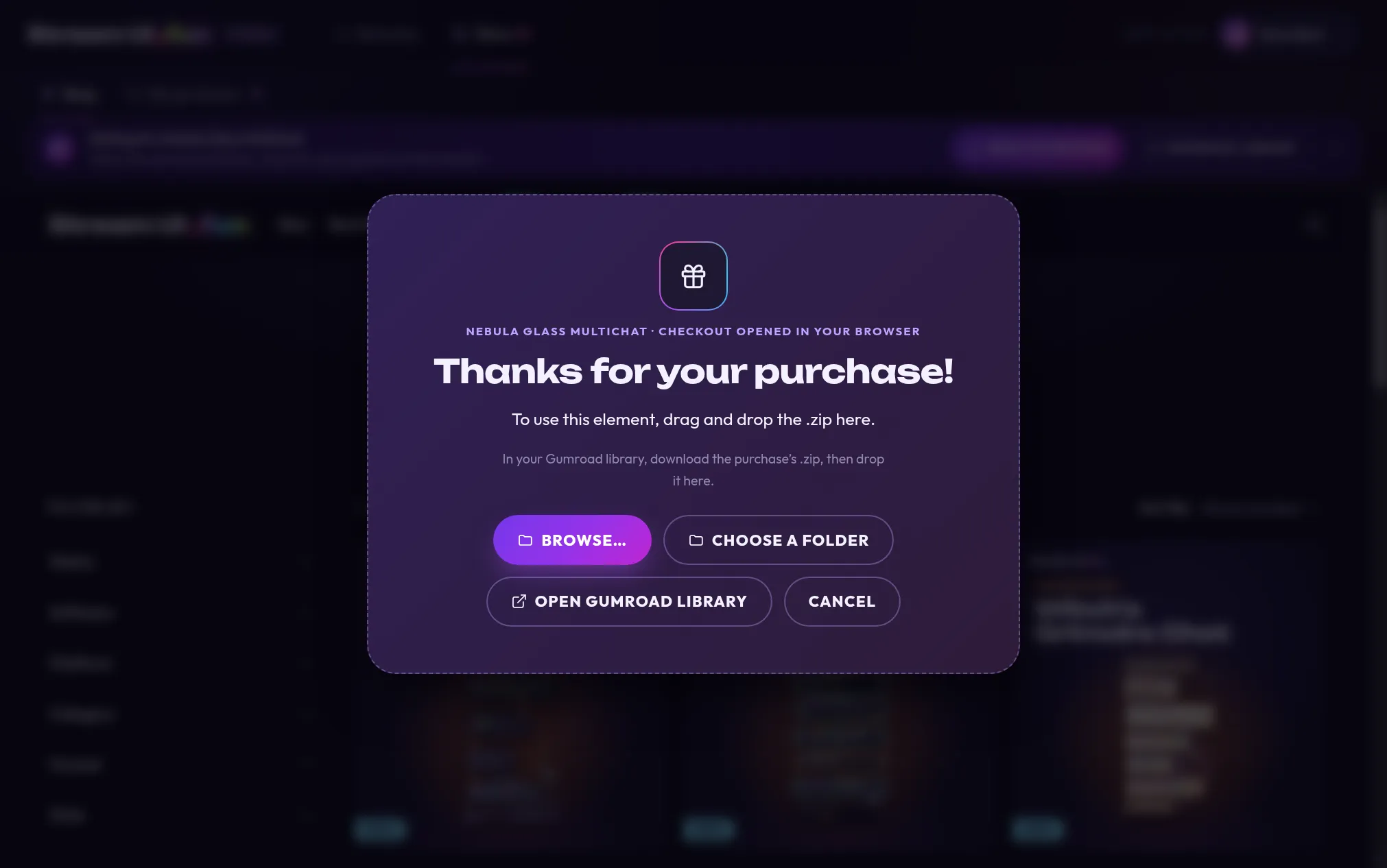
The line at the top names what you’re buying. -
Pay in your browser. Your download is then in your Gumroad receipt email and in your Gumroad library. Gumroad usually shows them right after you pay, too.
-
Download the purchase’s .zip. It’s the only download, and it holds the file for the app. Let your browser save it in your Downloads folder, and don’t unzip it.
-
Go back to the app. A few seconds after the download finishes, a line appears: Found … in Downloads. Click Unlock it (1).
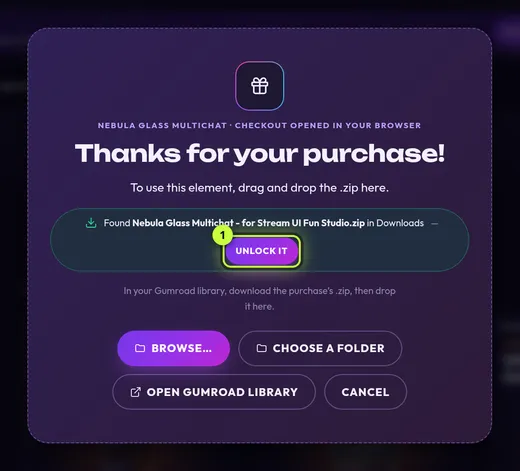
No Found line? Drag the .zip from your Downloads folder onto this screen, or click Browse… and pick it.
-
You see You’re all set! and the name of what you unlocked. Click Open (1) to see your new elements.
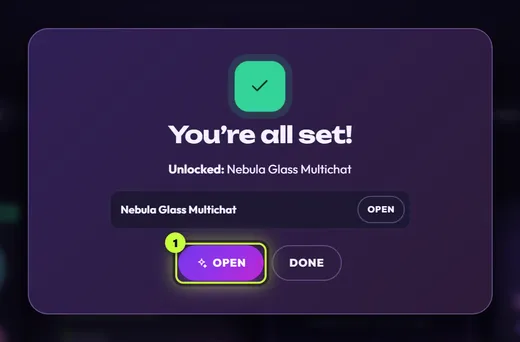
If you see Almost there! instead, this pack also needs its license key. See License keys.
-
The Elements tab opens, showing only the elements from your purchase, each with a New flag. Click one to make it yours. To see all your elements again, click the × on the From … chip (1).
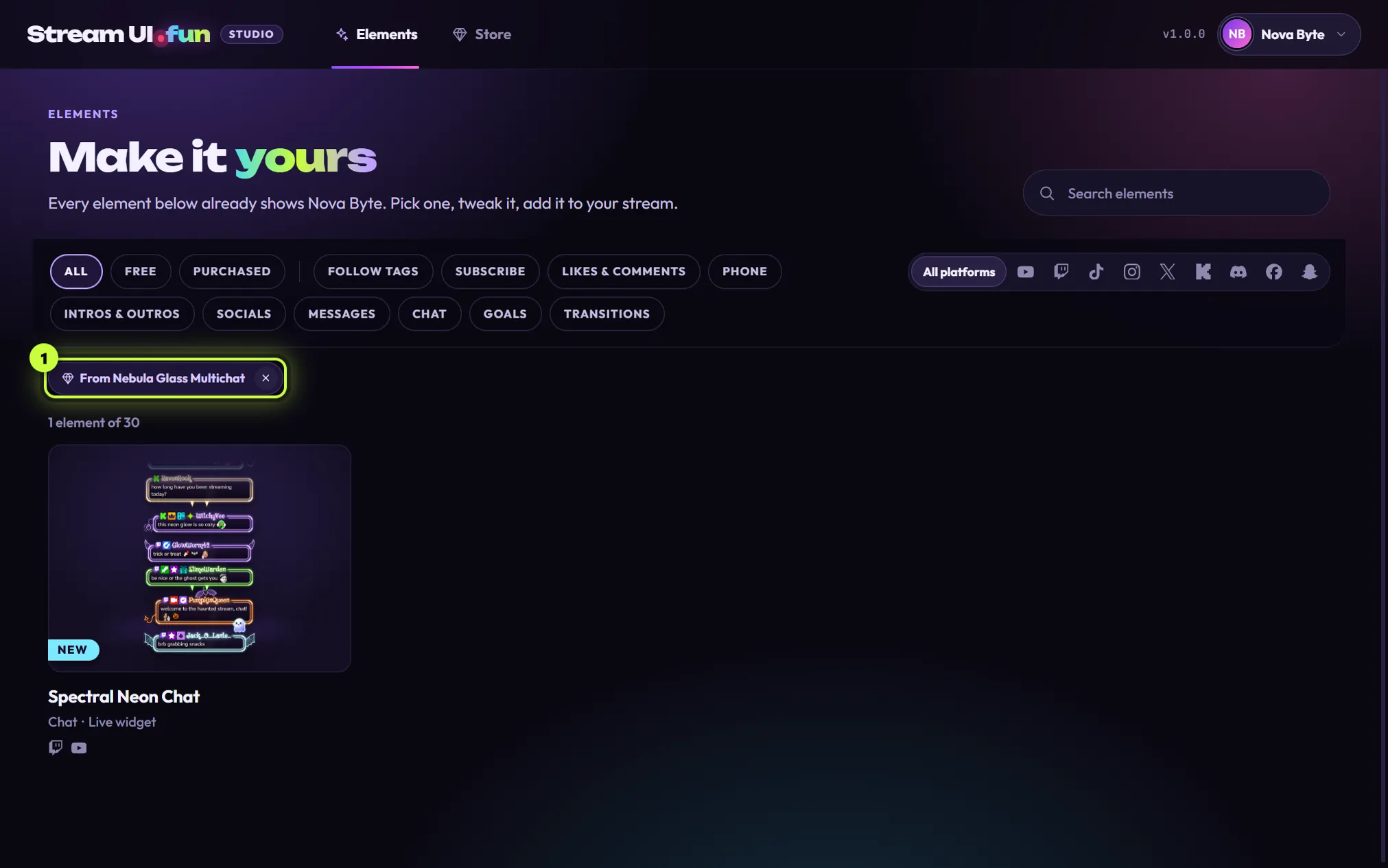
That’s it: the pack is yours.
What to do with your new elements
Section titled “What to do with your new elements”Most work just like the free ones: customize them, then add them to your stream. Chat and goal widgets and ready-made files like stickers and stinger transitions work a little differently: see Use elements from packs.
Click a new card in Elements to open it. The line under each card’s name tells you what kind of element it is:
| The card says | What it is | What to do |
|---|---|---|
| Ready-made file (with Sticker, Stinger transition, Looping video or similar) | A finished video, picture or file | Click it, then Add to OBS. The app shows where the file is and the steps to add it to OBS yourself as a media source. In other apps, add it as a video or image. A stinger goes in OBS’s scene transitions instead: see Ready-made files. |
| Live widget | A chat box or goal bar | Add your Twitch handle in Your channel, customize it, then Add to my stream. In OBS it reads your Twitch chat (chat messages, subs, cheers and raids); follows, tips and other platforms like YouTube only come in through a StreamElements overlay. In the app the preview shows Demo data. There’s no video to download. See Live widgets. |
| Transition | A full-screen animation for switching scenes | Works like the free elements. To use it as an OBS scene transition, download it as a video. See Transitions. |
| A category and a length, like Subscribe · 5.5 s | An animation, like the free elements | Customize it, then Add to my stream. It plays on cue (for example when its scene shows, or with a hotkey or Stream Deck button), not by itself when someone follows or subscribes. See How elements play. |
More on each streaming app: Pick your streaming app.
If you closed the “Thanks” screen
Section titled “If you closed the “Thanks” screen”Clicking Cancel or pressing Esc only hides the screen. The app keeps waiting for your file, even if you close and reopen the app. While it waits:
- the Store tab shows a small pink dot (1), and
- a Waiting for … banner sits at the top of the Store (2).

| Button | What it does |
|---|---|
| Drop or browse | Opens the Thanks for your purchase! screen again. |
| Gumroad library | Opens your Gumroad library in your browser, so you can download the file. |
| × (Stop waiting) | Stops waiting for this purchase. You can still unlock the file later, any time. |
Once the app spots your file, the banner changes to Found … in Downloads. Click Unlock it (1):

If you’re in another part of the app when the file arrives, a message pops up with the same Unlock it button. Nothing is unlocked until you click it.
The waiting stops by itself once every pack from that purchase is on your computer, even if one still needs its license key. It also stops when you click ×, or when you buy another pack in the app: the app waits for one purchase at a time.
Other things you might see
Section titled “Other things you might see”
Not on sale yet — check back soon. This product can’t be bought yet. Nothing was charged.

Checkout opened in your browser. This item isn’t used in the app, so there’s nothing to unlock here. Some products are made only for other streaming apps. You can still buy them in your browser, and their files stay in your Gumroad library, but there’s nothing to bring into the app.
| Message | What to do |
|---|---|
| That buy button doesn’t match a product we sell. Reopen the Store and try again. | The Store page is out of date. Restart the app, open the Store and try again. |
| Couldn’t open your web browser. Copy the link from the Store page instead. | Check that you have a default web browser set (Settings → Apps → Default appsSystem Settings → Desktop & Dock → Default web browserSettings → Default Apps), then try again. |
| The checkout couldn’t be opened. Please try again. | Try again in a moment. If it keeps happening, restart the app. |