How your channel fills in elements
Every element fills itself in from the Your channel panel: your name, handle, picture, other platforms and counts. This page shows where each value goes, and how to change it on every element at once or on just one.
What fills in by itself
Section titled “What fills in by itself”| From your channel | Goes into |
|---|---|
| Channel name | The name on each element, like Channel name (some elements call it Page name or Display name). |
| Your handle | Handle fields, like Handle, Twitch handle or Kick username. An element made for one platform uses your handle for that platform. If you haven’t added one, it uses your main handle. |
| Channel picture | Channel picture and Profile picture. |
| Other platforms | The Socials Bar (one tile for each platform you filled in) and the Discord Invite Tag (your invite link). |
| Followers & subscribers | Subscriber count, Follower count and Member count. See Counts on elements. |
The line under a field
Section titled “The line under a field”Open any element and look at the Customize panel on the right. Under each field that comes from your channel, a small line tells you where the value comes from, with links to change it.
From your channel
Section titled “From your channel”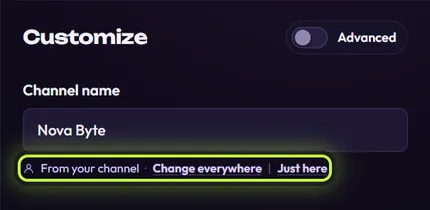
From your channel means this element shows what’s in the Your channel panel. You have two choices:
- Change everywhere opens the Your channel panel at the matching box. Change it there and press Save, and every element updates.
- Just here puts your cursor in this field so you can type something different for this element only. On a picture field, it opens the file picker so you can choose a picture for this element.
Only on this element
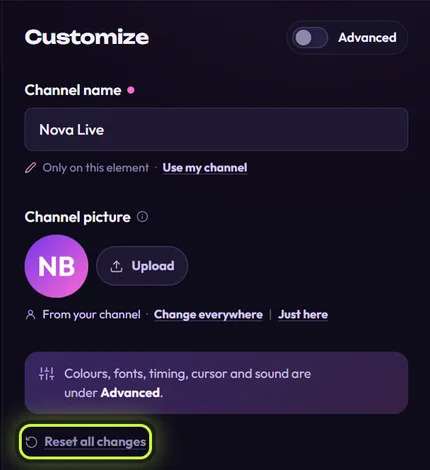
Section titled “Only on this element”Only on this element means you changed this value here, so this element no longer follows your channel. The pink dot after the label marks a setting you changed. Press Use my channel to drop your change and show your channel’s value again. There’s a picture of it in the steps just below.
Change something on one element only
Section titled “Change something on one element only”Say you want “Nova Byte LIVE” on your intro but plain “Nova Byte” everywhere else.
-
On the Elements tab, click the element to open it.
-
Under Channel name, press Just here. (Clicking into the box and typing works too.)
-
Type the new name, like
Nova Byte LIVE. It saves by itself, and the line under the box changes to Only on this element · Use my channel.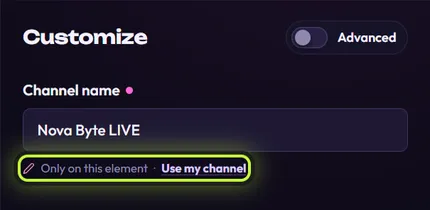
Every other element keeps showing your channel.
Change it on every element
Section titled “Change it on every element”-
Under the field, press Change everywhere. The Your channel panel opens at the matching box. (Or click your profile chip in the top-right corner.)
-
Change the value.
-
Press Save.
Counts on elements
Section titled “Counts on elements”Elements that show a count use the counts from Followers & subscribers in the Your channel panel (see Show your real follower counts). Which count goes where:
- An element made for one platform shows that platform’s count. The YouTube Subscribe Bar shows your YouTube subscribers, the Twitch Heart Follow Tag your Twitch followers.
- Member count always comes from your Discord server.
- An element made for any platform, or for several, uses the count of your main platform (the one picked under Where do you stream?).
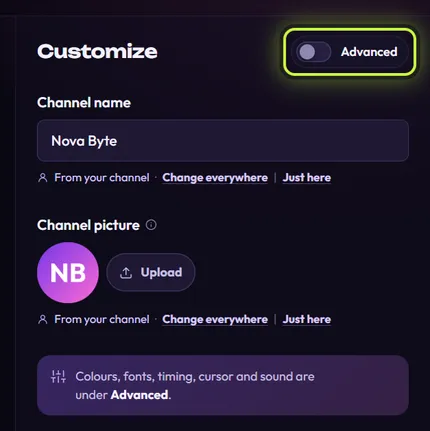
The count fields (Subscriber count, Follower count and Member count) are in the Text group. To see them, turn on the Advanced switch at the top of the Customize panel, then scroll to Text. See Advanced settings.
The line under a count field tells you whether your real count is on it:
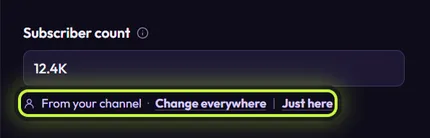
From your channel — your real count is showing. Change everywhere opens that platform’s count in the Your channel panel. Just here lets you type a different number on this element only.
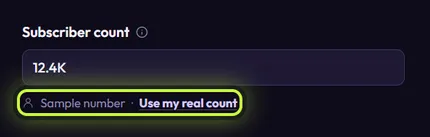
Don’t go by the number: the line under the field tells you whether it’s yours.
Sample number — the element still shows its made-up sample, because your channel has no count for this platform yet. Press Use my real count: the Your channel panel opens at that platform’s count, ready to fetch or type it. If you haven’t added that platform’s handle yet, it opens the handle box instead.
Other lines you may see:
| Line | What it means |
|---|---|
| Not shown yet · Use my real count | Same as Sample number, but this element has no sample, so no count shows until you add yours. |
| Sample number · Type the count for @friend | You typed another account’s handle on this element (with Just here), so the app doesn’t put your count on it. Press the link and type that account’s count. For Discord it says for this server. |
| Only on this element · Use my channel | You typed a count on this element. Press Use my channel to show your channel’s count again. |
Show a friend’s channel on one element
Section titled “Show a friend’s channel on one element”Want to shout out a friend without changing your own elements? Make a copy of the element (see Make copies and reset changes), then on the copy:
-
Press Just here under the name, handle and picture, and type or pick your friend’s details.
-
If the element shows a count, turn on Advanced and type your friend’s count in the count field.
Once you type a different handle on an element, the app stops putting your own count on it, and the count line says Type the count for @ followed by that handle. Elements without a handle field (like the YouTube Subscribe Bar) can’t tell it’s someone else, so type your friend’s count there yourself.
Go back to your channel
Section titled “Go back to your channel”- One field: press Use my channel under it.
- The whole element: at the bottom of the Customize panel, press Reset all changes (it only shows once you’ve changed something). The app asks Reset this element? and explains: “All your changes to this element go back to the defaults. Your channel name and picture stay.” Press Reset. Every field goes back to the element’s default, so it shows your channel again. (“Your channel name and picture stay” means the Your channel panel isn’t touched.)
When you change your channel
Section titled “When you change your channel”When you press Save in the Your channel panel, or your counts are fetched:
- The cards on the Elements tab redraw with your new details. A line like Adding your channel to 12 cards… shows while they do.
- An element open in the editor updates too.
- Elements you’ve already added to OBS are updated for you, and each one that changed plays once. If it’s in your live scene, your viewers see it, so change your channel and fetch counts before you go live. If the app can’t reach OBS at that moment, the element shows Click Refresh in OBS. See Change an element that’s already in OBS.