Error messages explained
When something goes wrong, Stream UI Fun Studio tells you in plain words what happened. This page lists those messages, grouped by where you see them, with what each one means and how to fix it.
Words in italics stand for something the app fills in, like your file name, a pack name, a platform (Twitch, YouTube…) or your handle. If you’d rather start from what’s going wrong than from a message, see Troubleshooting. A message you can’t find here is probably one of the general messages at the bottom.
OBS connection
Section titled “OBS connection”These appear in the Add to OBS window (the one that opens when you click Add to my stream with OBS as your streaming app). While it isn’t connected, the window checks on OBS by itself every few seconds, so it often moves on as soon as you fix the problem.
Headings in the Add to OBS window
Section titled “Headings in the Add to OBS window”| You see | What it means | What to do |
|---|---|---|
| OBS Studio isn’t installed | The app can’t find OBS Studio on this computer. | Click Get OBS Studio, install it and open it once. Using another streaming app? Click Another app for its steps. |
| Open OBS Studio | OBS is installed but not open. | Start OBS. The window notices on its own, or click Check again. |
| Turn on OBS’s connection | OBS is open, but nothing answers at the address the app uses: its WebSocket server (the switch that lets other apps talk to OBS) is off, or it listens on a different port (normally 4455). | In OBS, open Tools → WebSocket Server Settings, tick Enable WebSocket server, click Apply, then click I’ve done it. You only do this once. Already ticked? Set Server Port to 4455 in the same window, click Apply, then I’ve done it. |
| OBS needs its password | OBS protects its connection with a password. | Click Auto-detect password. Or copy it from Tools → WebSocket Server Settings → Show Connect Info in OBS, paste it and click Connect. |
| Can’t reach OBS | OBS isn’t answering the app. It may be busy or frozen, the app couldn’t tell whether OBS is running, or the Server address points to a computer that doesn’t answer. | Click Auto-detect password: it also picks up a changed port. Still stuck? Restart OBS, then check Tools → WebSocket Server Settings: the server is on, and the Server Port matches the end of the Server address in the app (normally ws://127.0.0.1:4455). |
| Update OBS Studio | Your OBS (or its WebSocket connection) is older than OBS 28, which the app can’t talk to. | Update OBS Studio to version 28 or newer (it’s free; Get OBS Studio opens its download page), then try again. Until then, use Add it manually. |
| OBS is on another computer · Adding automatically only works when OBS runs on this computer. Use “Add it manually” instead. | The app is connected to an OBS at another address. Adding automatically only works with OBS on the same computer, so Add to OBS is greyed out. | Use Add it manually. For a two-PC setup, save an HTML folder instead: see Add to OBS by hand. |
Messages under the password box
Section titled “Messages under the password box”| You see | What it means | What to do |
|---|---|---|
| Couldn’t find OBS’s settings on this computer. Paste the password instead: in OBS open Tools → WebSocket Server Settings → Show Connect Info. | Auto-detect couldn’t find OBS’s settings on this computer. | Copy the password from Show Connect Info in OBS, paste it and click Connect. |
| Found the settings, but OBS didn’t accept them. Paste the password from Tools → WebSocket Server Settings → Show Connect Info. | The app read OBS’s settings, but still couldn’t connect with them (the password may have just changed). | Copy the current password from Show Connect Info and paste it. |
| That password didn’t work. Use Auto-detect, or copy it again from Tools → WebSocket Server Settings → Show Connect Info. | OBS turned down the password. | Click Auto-detect password, or copy it again. Watch for extra spaces. |
| OBS wants a password. Use Auto-detect, or paste it from Tools → WebSocket Server Settings → Show Connect Info. | OBS needs a password, but none was given (for example, you clicked Connect with the password box empty). | Auto-detect it, or paste it. |
| OBS isn’t answering. Check that it’s open and its WebSocket server is turned on. | Nothing answered at the server address. | Open OBS and turn on its WebSocket server (see Turn on OBS’s connection above). |
| OBS took too long to answer. Make sure it isn’t busy or frozen, then try again. | OBS is there but slow to respond. | Wait for OBS to settle (or restart it), then try again. |
| The OBS address must look like ws://127.0.0.1:4455. | The Server address you typed isn’t in the right shape. | Type it as ws://127.0.0.1:4455 (change only the number at the end if OBS uses another port). |
For the full walk-through, see Connect the app to OBS.
Adding to OBS
Section titled “Adding to OBS”These show up when you click Add to OBS (or Update in OBS), Play now or Refresh. If the app can’t connect to OBS at that moment, you get one of the messages under the password box instead, like “OBS isn’t answering…”.
| You see | What it means | What to do |
|---|---|---|
| OBS said no to that request. Try again, or add it manually. | OBS refused what the app asked, for example because the scene was just renamed or removed. | Close the window and open it again so the scene list is fresh, pick a scene and retry. Or click Add it manually. |
| OBS was closed. Open it again and retry. | OBS closed while the app was talking to it. | Open OBS, then try again. |
| This source isn’t in OBS any more. Add it again. | The element’s source was deleted in OBS. | Click Add to my stream to add it again. |
| Add this element to OBS first. | The app doesn’t have this element down as being in OBS any more, for example after its source was deleted there. | Add it with Add to my stream first. |
| Adding automatically only works when OBS runs on this computer. Use “Add it manually” instead. | The app is set to talk to OBS on another computer. | Use Add it manually, or see Add to OBS by hand for two-PC setups. |
| Your OBS is too old to connect. Update OBS to version 28 or newer, then try again. | Your OBS is older than version 28. | Update OBS Studio. |
| Click Refresh in OBS (editor) or Refresh in OBS (card) | Your change is saved, but OBS couldn’t be reached to show it. | Open OBS: the app refreshes waiting elements as soon as it reconnects. Or click Refresh in the editor. |
| Couldn’t copy. Select the text and press Ctrl+C instead. | The app couldn’t put the text on your clipboard. | Select the text yourself and press Ctrl + CCmd + C. |
See also Change an element that’s already in OBS.
Downloads
Section titled “Downloads”These appear on a progress card at the bottom right of the window (or next to Download in the TikTok LIVE Studio guide), in a pop-up message, or in the More formats window.
| You see | What it means | What to do |
|---|---|---|
| Video export needs a part of the app that’s missing. Reinstall Stream UI Fun Studio to fix it. (Under the Download button: … Reinstall to fix it.) | The part of the app that makes videos is missing. Download is greyed out, and the video choices in More formats are too. | Reinstall Stream UI Fun Studio (see Download and install). Add to my stream and the HTML folder still work meanwhile. |
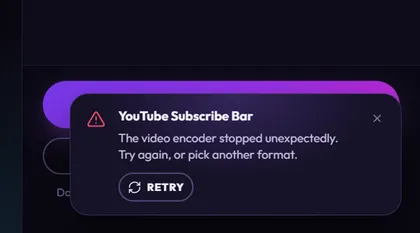
| The video encoder stopped unexpectedly. Try again, or pick another format. | The video maker stopped partway. | Click Retry, or choose another format in More formats. |
| The video couldn’t be saved. Check the folder still exists and there’s free disk space, then try again. | The file couldn’t be written: the folder is gone, the disk is full, or the file is open in another program. You also see this when an HTML folder can’t be saved. | Free some space, close any program using the file, or save to another folder. |
| Recording this element took too long. Try again — closing other heavy apps can help. | Recording took longer than the app allows, often because the computer is busy. | Close games or other heavy apps, then click Retry. |
| This element couldn’t be recorded. Try again, or reset its settings. | The element stopped working while it was being recorded. | Click Retry. If it fails again, try Reset all changes (see Make copies and reset changes). |
| Some export settings aren’t valid. Check the format, size and length, then try again. | The chosen options don’t work together. This is rare. | Pick different options in More formats. |
| This installation can’t write WEBM videos. Pick another format. | The video maker on this computer can’t make that format (WEBM, MOV, MP4 or GIF). In More formats, such a format is greyed out; point at it to see Not available on this computer. | Choose another format in More formats. If none work, reinstall the app. |
| That file isn’t there anymore. | You clicked Show in folder, but the file was moved or deleted. | Look in your Videos folder (videos are saved in Stream UI Fun Studio there unless you picked another place), or download the video again. |
| Saved “file name” · No sound played, so it’s silent | The video is saved. Sound was on for it, but the element played no sound while it was recorded. | Check that a sound is picked under Advanced → Effects, then download again. |
| This format can’t include sound on this computer. | Shown in More formats for a format that can’t carry sound here, so that video is silent. (GIFs say GIFs have no sound.) | Want sound? Pick WebM, MOV or MP4 if one of them shows a Sound switch. |
| No sound is picked for this element, so there may be nothing to hear. | Shown under the Sound switch in More formats: the element has no sound chosen. | Pick a sound under Advanced → Effects first, or leave sound off. |
More help: Download a video and Choose a format.
Picture & counts
Section titled “Picture & counts”Channel and element pictures
Section titled “Channel and element pictures”These show under the picture in the Your channel panel, or as a pop-up message in the editor.
| You see | What it means | What to do |
|---|---|---|
| That picture is bigger than 20 MB. Pick a smaller one. | The file is too big. | Use a smaller picture (a screenshot or a resized copy works). |
| That file isn’t a picture. Pick a PNG, JPG, WebP, GIF or SVG. | The file isn’t an image the app can use. | Pick a PNG, JPG, WebP, GIF or SVG file. |
| That picture couldn’t be opened. Try a PNG or JPG. | The file looks like a picture but can’t be read. | Save it again as PNG or JPG, then upload that. |
| That picture couldn’t be opened. Try uploading one instead. | The picture found with Get it from … couldn’t be read. | Click Upload picture and pick one from your computer. |
| We couldn’t find a picture for that name. Check the spelling, or upload a picture instead. | No account (or no picture) was found for that handle. | Check your handle (no @, no link), or upload a picture. |
| You seem to be offline. Upload a picture instead. | The lookup couldn’t reach the internet, or the service didn’t answer. | Check your connection and try again later, or upload a picture. |
| Too many picture lookups today. Upload a picture instead. | The picture lookup has had too many requests. The free service used for TikTok and X (and as a backup for YouTube) allows only a few lookups a day. | Upload a picture, or try again tomorrow. |
| That picture couldn’t be used. | In the editor: something unexpected went wrong while preparing the picture. This is rare. | Try again, or save the picture as PNG or JPG and upload that. |
More help: Add your channel picture.
Follower counts
Section titled “Follower counts”These show in Followers & subscribers in the Your channel panel: under a platform’s row, under the Fetch counts button, or under the Auto-fetch once a day switch.
| You see | What it means | What to do |
|---|---|---|
| We couldn’t find “handle” on Platform. Check the name. | No account with that handle exists on that platform. | Fix the handle (just the handle, without @), then click Fetch counts. |
| Counts need an invite link, like discord.gg/abc123. | You typed a Discord server name, not an invite link. | Paste an invite link, like discord.gg/abc123. |
| That Discord invite doesn’t work any more. Make a new invite that never expires and paste it above. | The invite has expired or was deleted. | In Discord, make a new invite set to never expire and paste it. |
| Couldn’t reach Platform right now. Try again in a little while. | No internet, or the site didn’t answer in time. | Try again later. |
| Couldn’t reach Platform right now. We kept your last count. | Same, but your last count is still shown. | Nothing to do now. Fetch again later. |
| Platform asked us to slow down. Try again in N minutes. | The site has had too many requests. If the wait is unknown, very short or very long, the message says “a few minutes” instead. | Wait the time shown, then fetch again. |
| Platform didn’t let us read your count right now. Type it in instead. | The site blocked the lookup (Instagram often shows a login page instead). | Type your count into the row, like 12.4K. |
| Platform changed its page, so we couldn’t read the count. Type it in for now. | The site changed, so the app can’t read it for now. | Type your count in. |
| Platform doesn’t share this count publicly. Type yours in. | This count can’t be read from outside. | Type your count in. |
| Your follower count is hidden on Platform. Type it in if you want to show it. | You’ve hidden the count on that platform. Elements leave the count out rather than show a number that isn’t yours. | Type it in if you want it shown. |
| Platform hides this count, so we kept the one you typed. | You clicked Fetch instead, but the count is hidden. | Nothing to do: your typed count stays. |
| We couldn’t read your Platform count right now. Type it in instead. | Something unexpected went wrong with the lookup. | Try again later, or type your count in. |
| Type a number, like 1250 or 12.4K. | What you typed isn’t a count the app understands. | Type digits, or a short form like 12.4K or 1.2M. |
| New handle: press Fetch counts | You changed a handle since the last fetch. | Click Fetch counts. |
| Updated 2 of 3 counts. The others say why. / Your count couldn’t be updated. Its row says why. / None of your counts could be updated. Each row says why. | Some or all counts couldn’t be read. | Read the message under each row and follow it in this table. |
| Your counts were checked a moment ago. You can fetch again soon. | You can fetch once a minute. | Wait for the countdown on the button. |
| Last checked time. Platforms couldn’t be read then. Press Fetch counts to see why. | Auto-fetch once a day ran, but some counts failed. | Click Fetch counts to see each row’s reason. |
More help: Show your real follower counts.
Unlocking packs
Section titled “Unlocking packs”In the Shop
Section titled “In the Shop”| You see | What it means | What to do |
|---|---|---|
| Not on sale yet — check back soon. | That product can’t be bought yet. | Check back later. |
| Checkout opened in your browser. This item isn’t used in the app, so there’s nothing to unlock here. | You bought something made for other apps only. | Finish paying in your browser. After that, its files are in your Gumroad library. |
| That buy button doesn’t match a product we sell. Reopen the Store and try again. | The app didn’t recognise that product. | Close the app and open it again (this reloads the Store), then retry. Still happening? Buy it on streamui.fun in your browser and drop the .zip in. |
| Couldn’t open your web browser. Copy the link from the Store page instead. | Your computer didn’t open your browser for checkout. | Check you have a default browser set in Windows SettingsSystem Settings → Desktop & Dockyour system settings (Default Apps), or buy on streamui.fun in your browser. |
| Offline — prices may be out of date | The app couldn’t reach streamui.fun, so it shows a saved copy of the store. Buying still opens in your browser. | Check your internet, then click Try again. If you’re still offline, the banner just stays. |
When you drop or pick a .zip
Section titled “When you drop or pick a .zip”These appear in the panel that opens after you drop or pick files (or as pop-up messages when that panel isn’t open). Each file that didn’t work is listed with its reason. If some files worked and others didn’t, the panel says You’re all set! (or Almost there!) and lists the files that didn’t work underneath.
| You see | What it means | What to do |
|---|---|---|
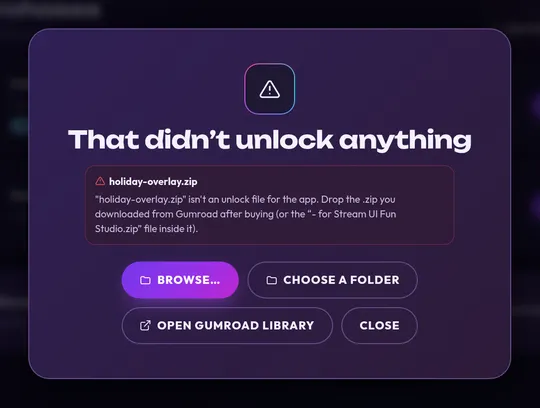
| That didn’t unlock anything | None of the files you gave the app worked. Each file is listed with its reason below the heading. | Read the reason, then follow its row in this table. |
| “file” isn’t an unlock file for the app. Drop the .zip you downloaded from Gumroad after buying (or the “- for Stream UI Fun Studio.zip” file inside it). | It’s a different file or folder, for example one of the files for OBS or StreamElements from inside your download, a product made only for other streaming apps, or Gumroad’s Download all .zip of a set. | Drop the .zip you downloaded from Gumroad. If you unzipped it, drop the file inside it whose name ends in “- for Stream UI Fun Studio.zip”. Bought a set? Drop each product’s .zip. Lost it? Download it again from your Gumroad library. |
| “file” is damaged or didn’t finish downloading. Download it again from your Gumroad library and drop the new file here. | The download is broken or incomplete. You also get this if you drop a file that isn’t a .zip. | Wait until the download finishes, or download it again. |
| “file” has files in it that the app won’t open, to keep your computer safe. Download it again from your Gumroad library and drop the new file here. | Something in the .zip looks unsafe. | Download a fresh copy from your Gumroad library. |
| “file” is too big to open directly. Unzip it first (right-click it, then Extract All) (double-click it), then drop the folder here. | The .zip is too large to read as it is. | Right-click it, choose Extract AllDouble-click it in Finder to unzip itRight-click it and choose Extract Here (or Extract), then drop the folder (or use Choose a folder). |
| “file” holds too many packs at once. Drop them in smaller groups. | One .zip or folder holds more than 20 packs (the app takes the first 20), or more than 100 zips and folders to look through (then it takes none). | Unzip it and drop the packs that weren’t unlocked in smaller groups. |
| “file” is larger than a pack can be. Download it again from your Gumroad library and drop the new file here. | The file is far bigger than a pack should be. | Download it again. |
| Pack or file doesn’t come from Stream UI, or it was changed after it was downloaded. Download it again from your Gumroad library and drop the new file here. | The pack’s seal is broken: it was changed or damaged. | Download a fresh copy. |
| Pack or file wasn’t signed by Stream UI, or it needs a newer Stream UI Fun Studio. Update the app and drop it again; contact us if that doesn’t help. | The app can’t confirm who made it. | Update the app and drop it again. Still stuck? Contact us. |
| Part of pack or file is damaged. Download it again from your Gumroad library and drop the new file here. | Some files inside are broken. | Download a fresh copy. |
| Pack or file has extra files in it that don’t belong. Download it again from your Gumroad library and drop the new file here. | Files were added to the .zip after download. | Download a fresh copy and don’t change it. |
| Pack or file needs a newer Stream UI Fun Studio. Update the app, then drop it again. | The pack uses features your copy of the app doesn’t have yet. | Update the app, then drop it again. |
| You already have a newer version of pack, so nothing changed. | You dropped an older version than the one you have. | Nothing to do. |
| Something inside pack or file is broken. Download it again from your Gumroad library and drop the new file here. | An element in the pack is broken. | Download a fresh copy. |
| Pack or file clashes with an element you already have. Update the app and try again, or contact us. | It conflicts with an element already in the app. | Update the app and try again, or contact us. |
| Couldn’t save pack on this computer. Check there’s free disk space, close programs that might be using the file, and try again. | The pack couldn’t be saved, or unlocking failed for another reason. | Free some disk space, close programs that might use the file, and try again. |
More help: Import and unlock your purchase.
License keys
Section titled “License keys”Some packs also need the license key from your Gumroad receipt. These messages appear in the Enter your license key window. The last three can also pop up when you click Check again in My purchases.
| You see | What it means | What to do |
|---|---|---|
| That doesn’t look like a license key. Copy it from your Gumroad receipt. | What you pasted isn’t shaped like a key. | Copy the whole key (it looks like XXXXXXXX-XXXXXXXX-XXXXXXXX-XXXXXXXX). |
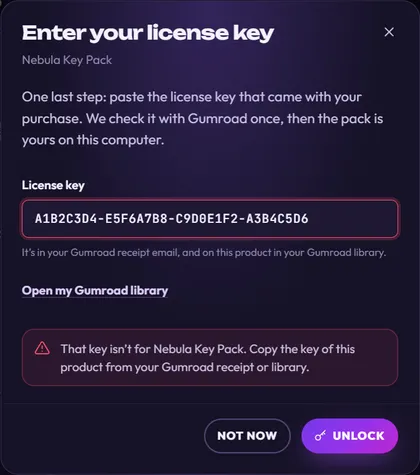
| That key isn’t for pack. Copy the key of this product from your Gumroad receipt or library. | Gumroad doesn’t know this key for this product: it may be the key of another product, or part of it is missing or mistyped. | Copy the key shown for this exact product in your receipt or Gumroad library. |
| The license key for pack was turned off by the seller. Contact us if you think that’s a mistake. | The key was switched off. | Contact us. |
| The purchase of pack was refunded or charged back, so it can’t be unlocked. | The purchase was refunded. | If that’s a mistake, contact us. |
| Your access to pack has ended. Renew it on Gumroad, then try again. | Your access has ended on Gumroad (for example, a subscription ended). | Renew it on Gumroad, then enter the key again. |
| This key for pack was already used on too many computers. Contact us to reset it. | The key has reached its limit of computers. | Contact us to reset it. |
| Couldn’t reach Gumroad to check your key. Check your internet connection and try again. | No internet, or Gumroad didn’t answer in time. | Check your connection and try again. |
| Gumroad asked us to slow down. Try again in a minute. | Too many checks in a short time. | Wait a minute, then try again. |
| Gumroad couldn’t check your key right now. Try again in a few minutes. | Gumroad had a problem. | Try again in a few minutes. |
Locked packs in My purchases
Section titled “Locked packs in My purchases”A pack that can’t be used shows a Locked label in Store → My purchases, with the reason next to it. Check again only shows when it can help: when a saved key stopped working or couldn’t be confirmed for 30 days. If Gumroad says yes, you see “Pack is unlocked again.”; if the answer is still no, the reason pops up again.

| You see | What it means | What to do |
|---|---|---|
| Enter the license key from your Gumroad receipt to use this pack. | The pack is installed but its key hasn’t been entered yet. | Click Enter key. |
| This purchase was refunded or charged back, so the pack is locked. | Gumroad says the purchase was refunded. | If that’s wrong, contact us, then click Check again. |
| The seller turned off this license key. Contact us if you think that’s a mistake. | The key was switched off. | Contact us. |
| Your access to this pack has ended. Renew it on Gumroad, then enter your key again. | The purchase has ended. | Renew on Gumroad, then click Enter key. |
| Your license key doesn’t work any more (it may have been replaced). Enter the current key from your Gumroad library. | The saved key is no longer valid. | Copy the current key from your Gumroad library and click Enter key. |
| We couldn’t confirm this purchase with Gumroad for over 30 days. Connect to the internet and check again. | Packs with a key stay unlocked offline for up to 30 days. That time is up. | Go online and click Check again. |
More help: License keys.
App updates
Section titled “App updates”These appear after you click the round update button in the top bar.

| You see | What it means | What to do |
|---|---|---|
| Update now? · A video is still exporting. The app restarts to update, which stops the export. | Updating restarts the app, which stops a video that’s still being saved. | Click Later and update once the video is done, or Update and restart to stop it. |
| Couldn’t download the update. Check your internet connection and try again. | The download didn’t finish. | Check your connection, then click the update button again. |
| The downloaded update didn’t match what we published, so it wasn’t installed. Try again in a while. | The downloaded file failed a safety check, so it wasn’t run. | Try again later. |
| Couldn’t save the update. Free some disk space and try again. | The update couldn’t be saved on this computer. | Free some disk space, then try again. |
| Couldn’t start the update installer. Download the new version from streamui.fun instead. | The installer didn’t start. | Download the newest installer from streamui.fun/download and run it. |
More help: Update the app.
Saving and other messages
Section titled “Saving and other messages”The app saves your changes by itself. If a save, or anything else, fails for a reason the app can’t name, you see one of the general messages at the end of this table.
| You see | What it means | What to do |
|---|---|---|
| That element is not in your library (anymore). | The element was removed, for example with its pack. | Go back and pick another element. To get a pack back, unlock its .zip again. |
| This element isn’t in your library any more. | The element you were editing was removed, for example by removing its pack. | Pick another element. To get a pack back, unlock its .zip again. |
| You have too many copies of this element. | You’ve hit the limit of copies for one element. | Delete copies you don’t use (see Make copies and reset changes). |
| The preview hit a problem. Try Replay, or reset the settings. | The preview didn’t start or broke. | Click Replay. If that doesn’t help, use Reset all changes. |
| The app couldn’t load your elements. Restart Stream UI Fun Studio; if it keeps happening, reinstall it. | The app couldn’t start properly. | Close and reopen the app. If it happens again, reinstall it. |
| Stream UI Fun Studio could not start: reason | A system message: the app failed to start. | Restart your computer and try again. If it keeps happening, reinstall and contact us with the reason shown. |
| The app did not answer. Restart Stream UI Fun Studio if this keeps happening. | A part of the app didn’t respond. This is rare. | Try again. If it keeps happening, restart the app. |
| Something went wrong. Try again, or restart Stream UI Fun Studio if it keeps happening. / Something went wrong. Please try again. | Something unexpected happened, for example a change that couldn’t be saved. | Try again. If it keeps happening, restart the app. |